

We’re excited to introduce a powerful new automation tool that makes life easier for operators and drivers: Geofencing for Driver Anywhere.
Geofencing allows you to define a virtual radius around pickup and drop-off locations. When a driver enters the defined area, they’re automatically prompted to update their trip status in the DriverAnywhere app—no manual checking or guesswork required.
Whether you’re managing a small fleet or coordinating dozens of rides at once, geofencing brings added accuracy and automation that helps streamline operations.
Prerequisites
To use this feature, make sure your drivers are using the latest versions of DriverAnywhere:
- Android: Version 4.6.5 or later
- iOS: Version 4.6.3 or later
Where to Enable Geofencing
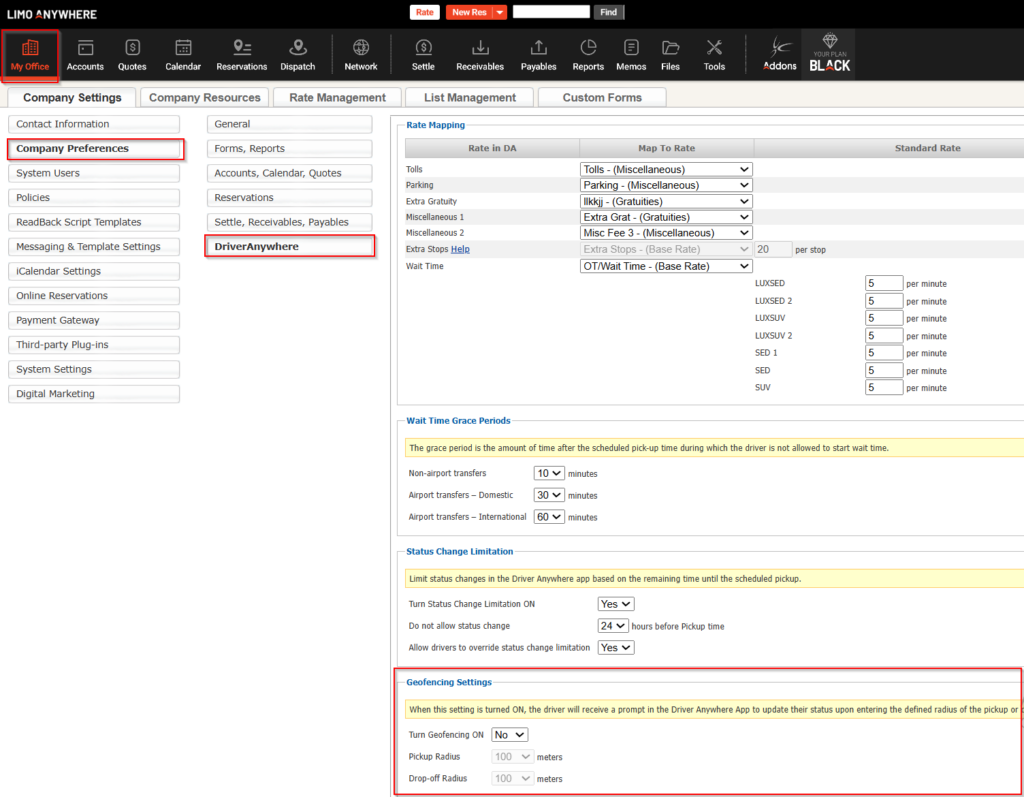
You can find the settings in your operator dashboard:
Navigation:
My Office → Company Preferences → Driver Anywhere
How It Works
1. Turn Geofencing On
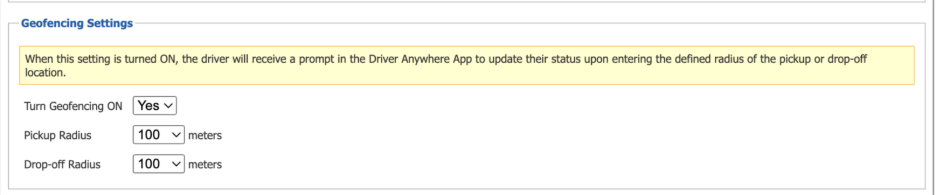
Enable geofencing by toggling the “Turn Geofencing ON” option to YES. This activates the ability to configure radius-based prompts.
2. Pickup Radius
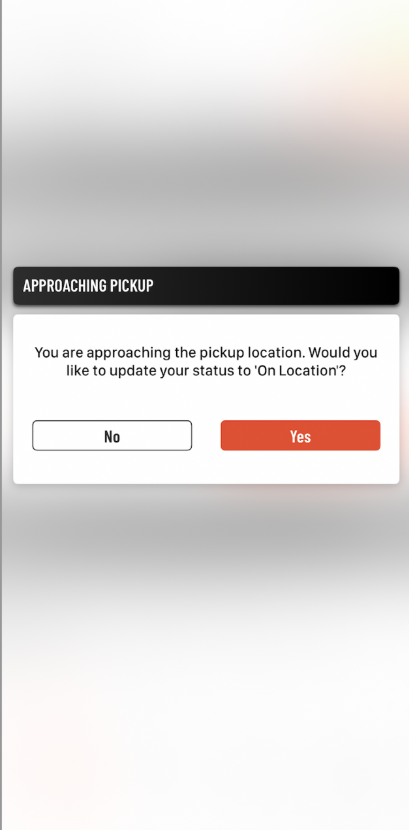
Set a desired pickup radius (e.g., 250 ft, 0.5 mi, etc.). When a driver enters this area, they’ll automatically receive a prompt in the Driver Anywhere app to update their status to “On Location.”
3. Drop-Off Radius
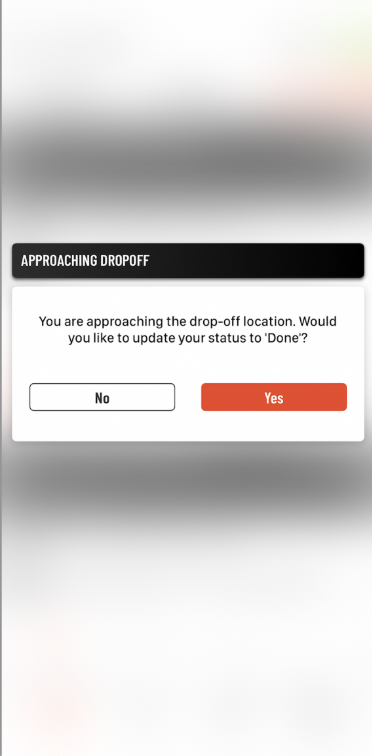
Similarly, set a drop-off radius around the passenger’s destination. When the driver enters this area, they’ll be prompted to change their status to “Done.”
Why It Matters
Geofencing offers greater operational efficiency and less room for error. Here’s how it helps:
- Smarter Automation: Reduce reliance on driver memory or manual updates.
- Time Savings: Dispatchers spend less time monitoring location changes.
- Accurate Reporting: Improve trip logs and data accuracy for your records.
- Real-Time Awareness: Drivers receive status prompts precisely when needed.