

Managing The Service Type List
Limo Anywhere uses Service Types to describe the type of trip the vehicle is being used for (such as Airport Transfer, or Hourly); and then apply rates, vehicle types and rental agreements that apply to the particular type of trip.
Service Types can be diverse or kept very simple. The driving factor on how many Service Types a company may have is the rate structure. For example, if the company has a different rate structure for a wedding, a prom, and a night on the town there should be Service Types created for each of those. If however all of those are considered hourly rentals at the same rate a single Service Type could be used. It is important to note each Service Type must have a unique code.
Listed below are the default Service Types found in Limo Anywhere.
- From Airport
- To Airport
- Point-to-Point
- Hourly/As Directed
- Charter
- Tour
Service Types can be edited, or added.
Service Type Fields Explained:
-
General
- Service Type Name: This is the name of the type of service. (i.e. Prom, Wine Tour, etc…)
- Service Type Code: This is a code name for the service type. It should be all one string. (i.e. PROM, WTR, etc…)
- Agreement: Select the Agreement you want to be used foe this service.
-
Pricing
- Pricing Type: The type of rates you want to use.
- Hourly
- Fixed
- Passenger
- Distance
- Fixed-Or-Distance (used a fixed rate, if one is not found, then it will use the distance rate)
- Let the system use the selected default rate matrix or select a specific matrix.
- Pricing Type: The type of rates you want to use.
-
Default Mapping
- Select the default service type is applicable. See full article here: Default Service Types
-
ORES/Apps
- Visible in ORES 4: toggle this switch to determine if you want the service type to be available on the Online Booking System (ORES).
- Custom Label Name: The name you want to be displayed online. For example, Your Service Type Name may be Airport Arrival, but you want the customer to see From Airport for clarity and ease of understanding. You would put From Airport in the Custom Label Name.
- Pick Up, Drop Off Stops: choose the address types you want to be available here
To Edit any Service Type
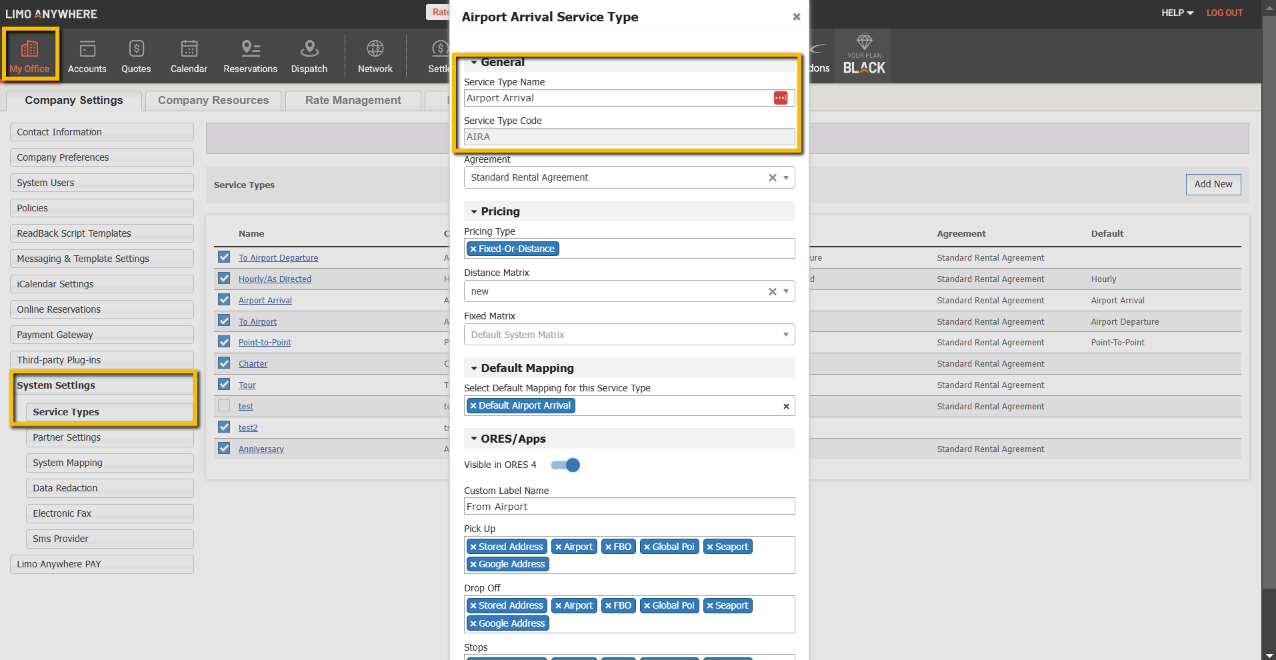
- Go to My Office > System Settings > Service Types.
- Click the ‘Service Type’ name.
- You can edit the ‘Service Types Description’ but not the ‘Service Types Code’.
- Click the ‘Save’ button. In the example below, the Service Type ‘From Airport’ was changed to ‘Airport Arrival’.
To Add any Service Type
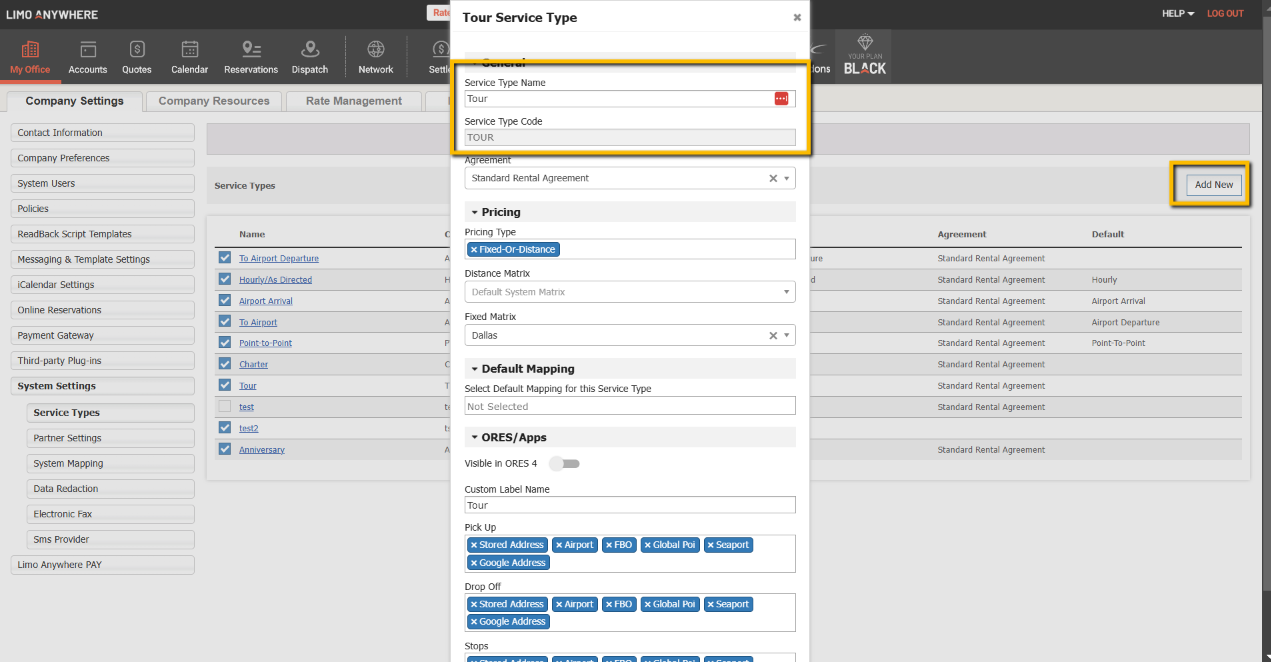
- Click on the Add Service Type linked in the upper right of the Service Type box.
- Blank fields will appear at the top of the Service Type list.
- Enter the ‘Service Type Description’ and ‘Service Type Code’.
- Click the ‘Add New’ button. In the example below the Service Type ‘Tour’ was added with the code ‘TOUR‘.

Note: Be careful when adding a Service Type because once added Service Types CANNOT be deleted.