

Your LA Pay Payment Portal – Overview and Navigation Guide
Pulse is your LA Pay payment portal – a modern, streamlined hub for viewing transactions, managing funding, running reports, and processing payments. This guide walks you through each section so you can get the most out of it from day one.
Accessing Pulse
Your access to Pulse has not changed. Log into Limo Anywhere and navigate to:
Reports > Limo Anywhere Pay Report
Pulse will open in a new browser tab. No separate username or password is required – your Limo Anywhere login handles access automatically.
Dashboard
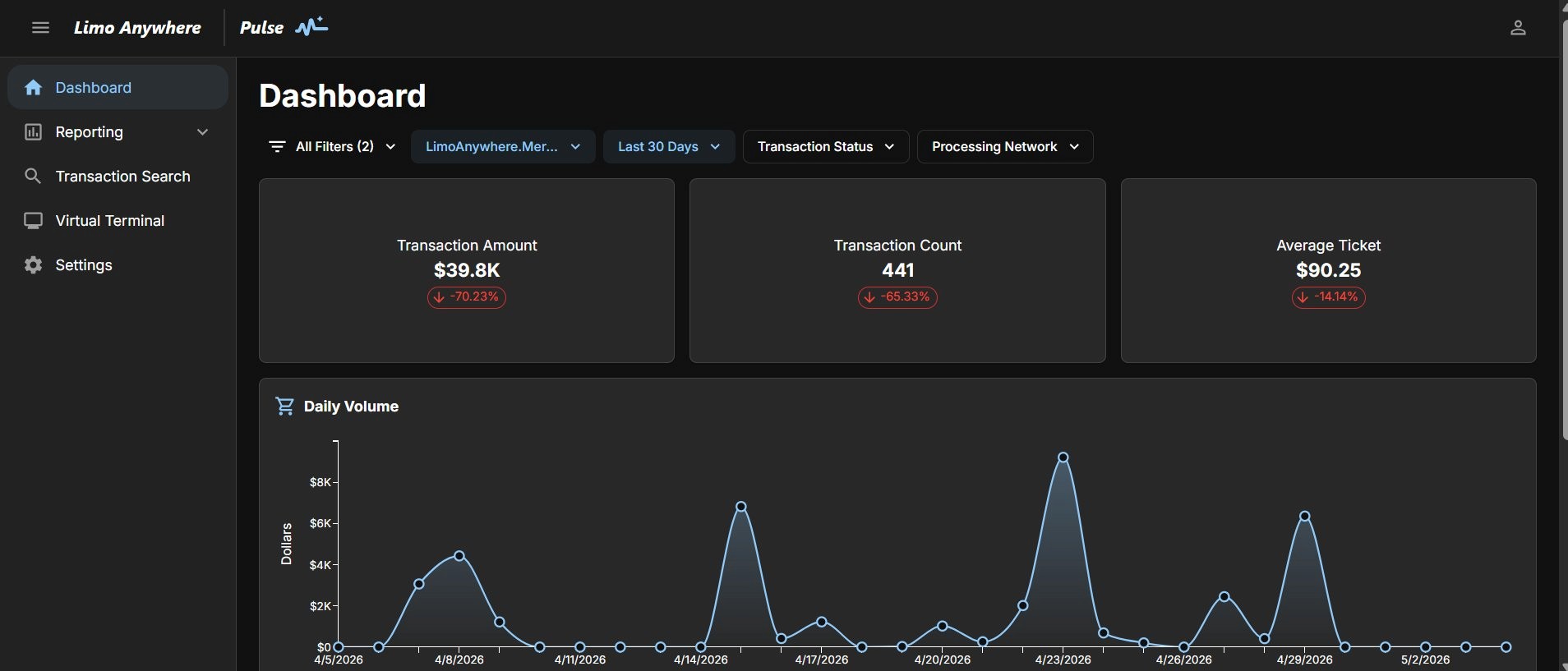
The Dashboard is your home screen in Pulse. It gives you a real-time snapshot of your payment activity at a glance.
Pulse Dashboard
Filter Bar
The filter bar at the top of the Dashboard lets you adjust what data is displayed. You can filter by:
- Merchant: Select which account to view. Relevant if you have more than one MID.
- Date Range: Choose from preset options (Today, Last 30 Days, Last 90 Days, etc.) or set a custom date range.
- Transaction Status: Filter by the status of transactions.
- Processing Network: Filter by payment type (Credit, Debit, ACH, etc.).
The filter bar affects the KPI tiles and Daily Volume chart above. The Recent Funding and Merchant Statement sections at the bottom of the page are not affected by filter selections
KPI Tiles
Three summary tiles display your key metrics for the selected period:
- Transaction Amount: Total dollar volume processed.
- Transaction Count: Total number of transactions.
- Average Ticket: Average transaction value.
Each tile shows a percentage change compared to the previous equivalent period so you can track trends over time.
Daily Volume Chart
The line graph below the tiles shows your daily transaction volume across the selected date range. It updates automatically as you adjust filters.
Recent Funding and Merchant Statement

Recent Funding and Merchant Statement
- Recent Funding: Displays your most recent deposit entries. Click “See More” to open the full Funding Summary report.
- Merchant Statement: Click “View” to download your monthly statement as a PDF. You will be prompted to select your merchant, timezone, month, and year before it downloads.
Pop-up blockers must be disabled for the Merchant Statement to download correctly.
Reporting
The Reporting section is where you will find all of your detailed payment reports. It is made up of two pages: Report Explorer and Large Exports.
Report Explorer
Report Explorer
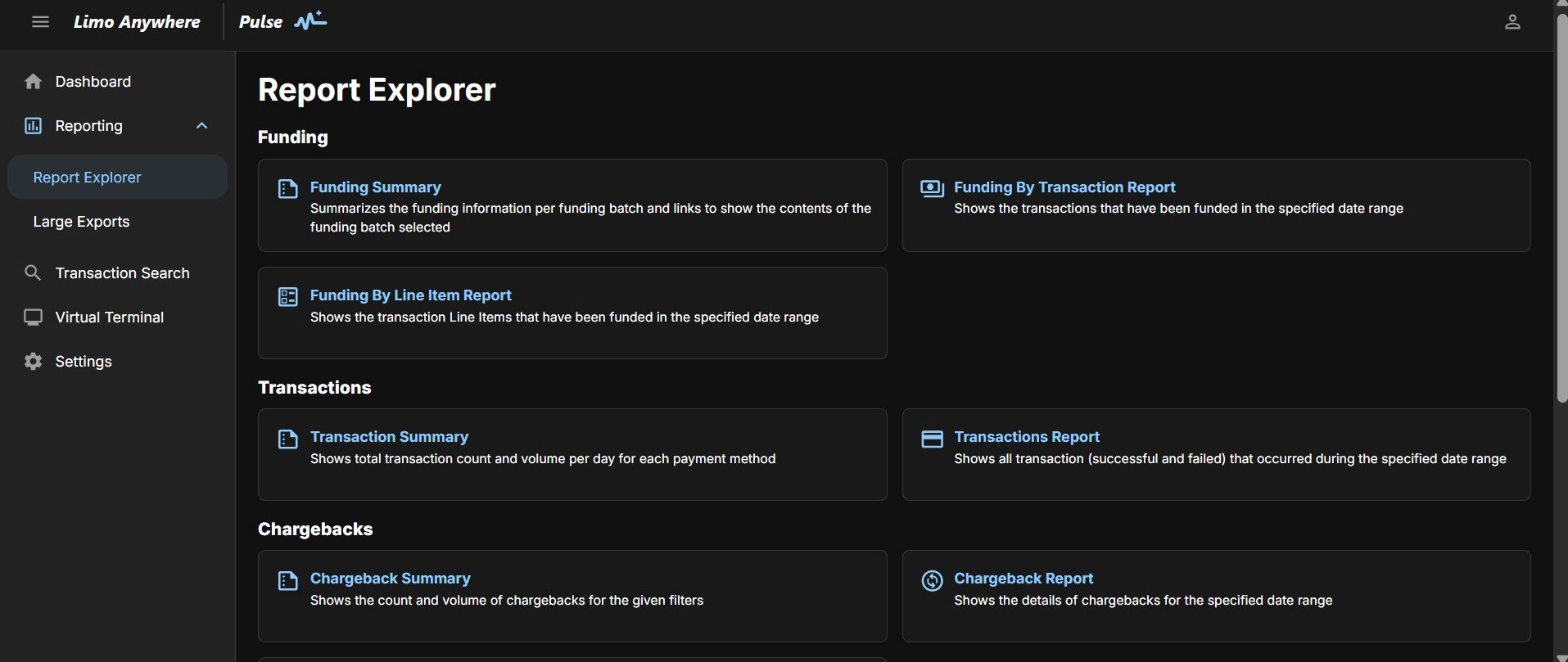
Report Explorer is the starting point for all reports, organized into the following categories:
- Funding: Funding Summary, Funding By Transaction Report, Funding By Line Item Report.
- Transactions: Transaction Summary, Transactions Report.
- Chargebacks: Chargeback Summary, Chargeback Report, Chargeback Action Report.
- Merchant: Merchant Statement, Merchant Deposit Report.
- ACH Returns: ACH Returns Summary, ACH Returns Report.
All reports can be exported as CSV or PDF. Click the dropdown arrow on the Export button to switch between formats.
Large Exports
Large Exports page
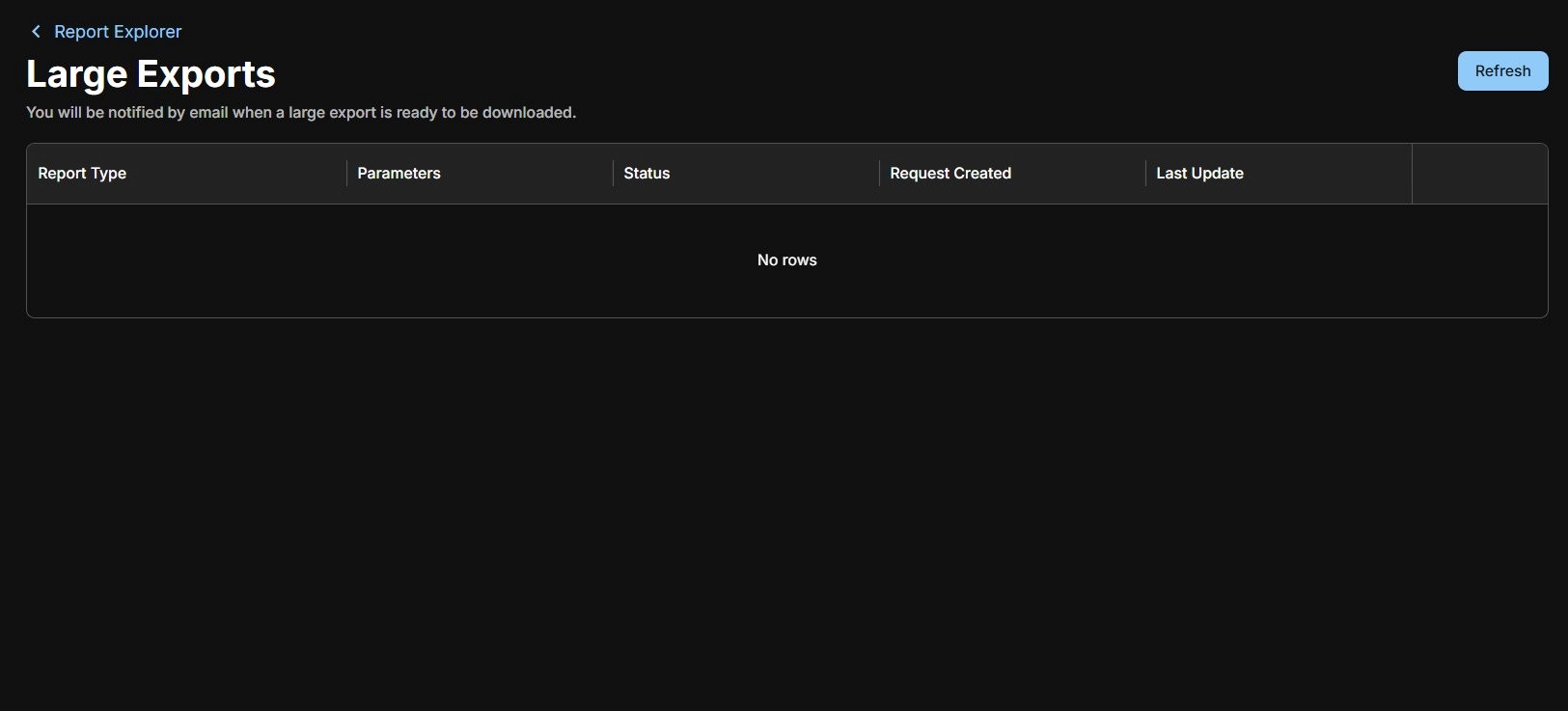
When a report export is too large to download immediately, it is queued in the Large Exports page. You will receive an email notification when it is ready. Use the Refresh button to check the status of any pending exports.
Report Details
Funding Summary
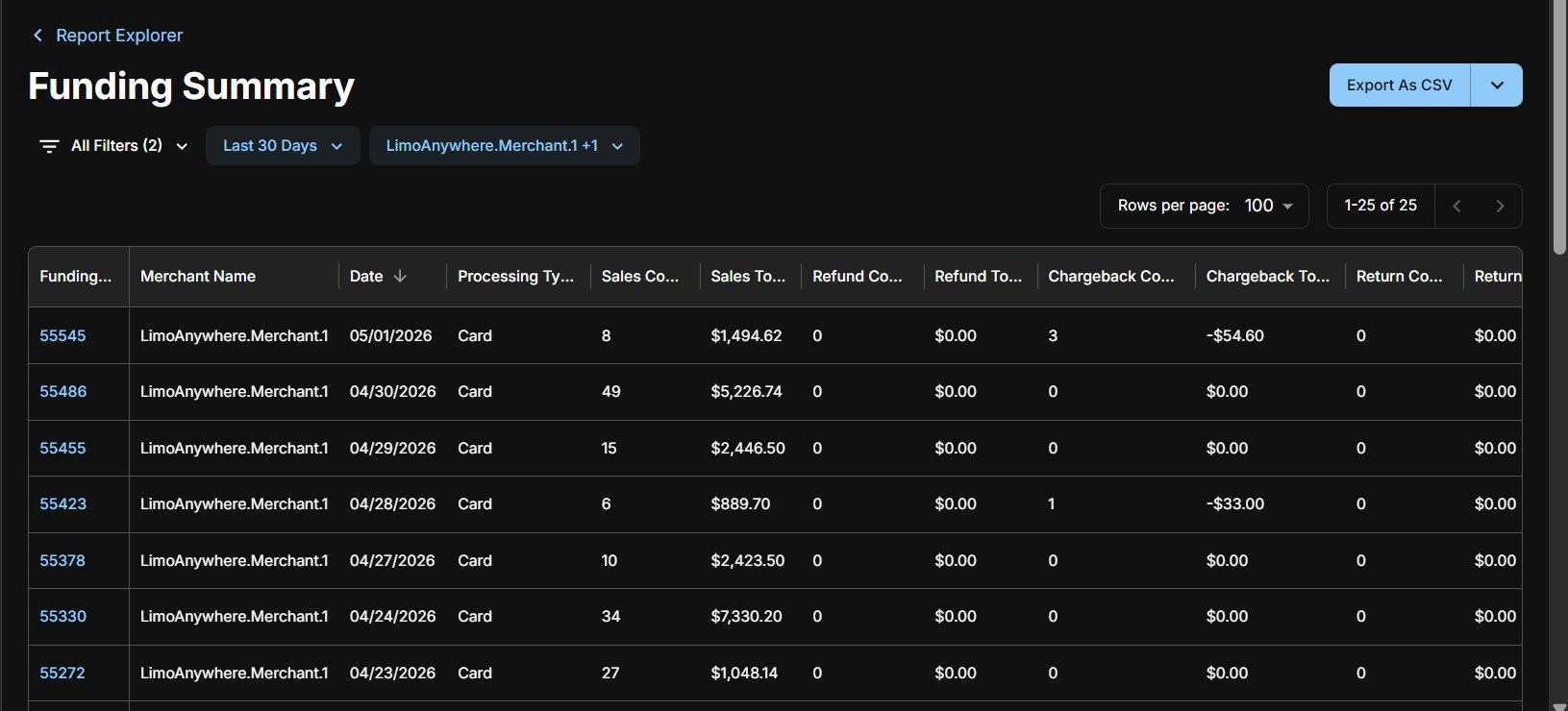
Funding Summary is one of the two reports you will want to check regularly. It shows all of your deposits batch by batch, with a full breakdown of what is included in each one.
Funding Summary
Each row represents a single funding batch identified by a unique Funding ID. Click any Funding ID to open the full details for that batch.
Card and ACH payments fund separately and will always appear as distinct Funding IDs. The Processing Type column shows which applies to each batch.
Funding Details
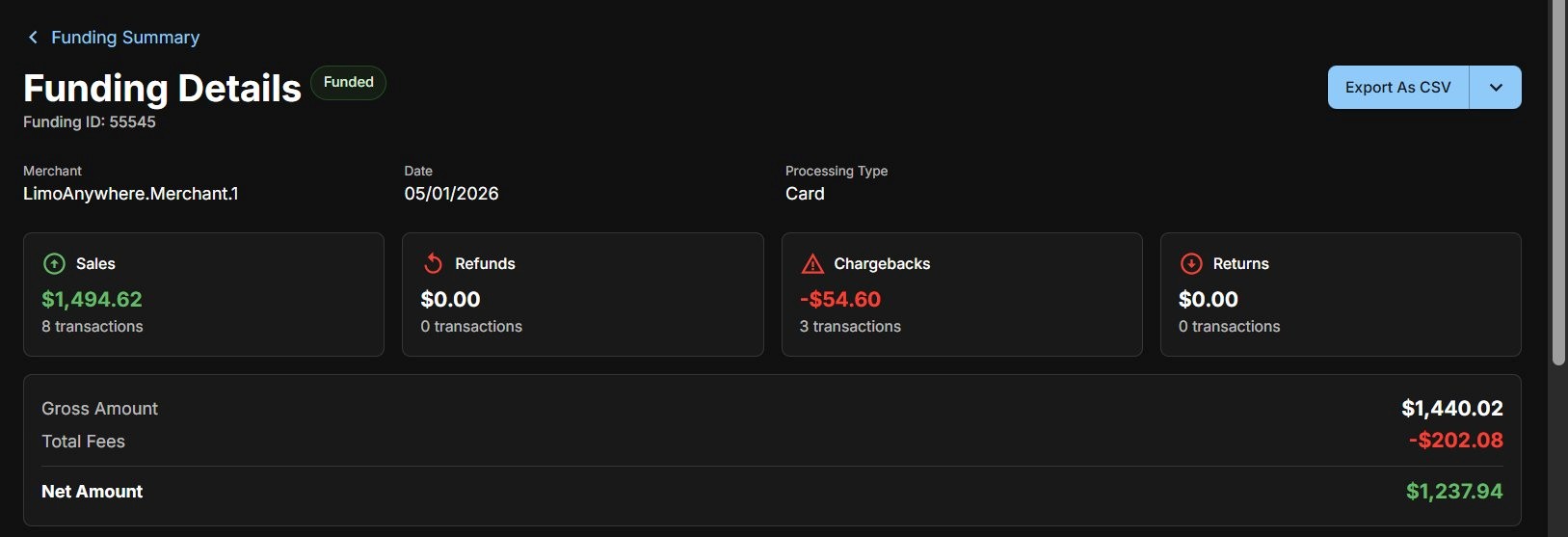
Funding Details
Clicking a Funding ID opens Funding Details for that batch, showing a full summary of Sales, Refunds, Chargebacks, and Returns, along with Gross Amount, Total Fees, and Net Amount.
Four tabs give you further detail:
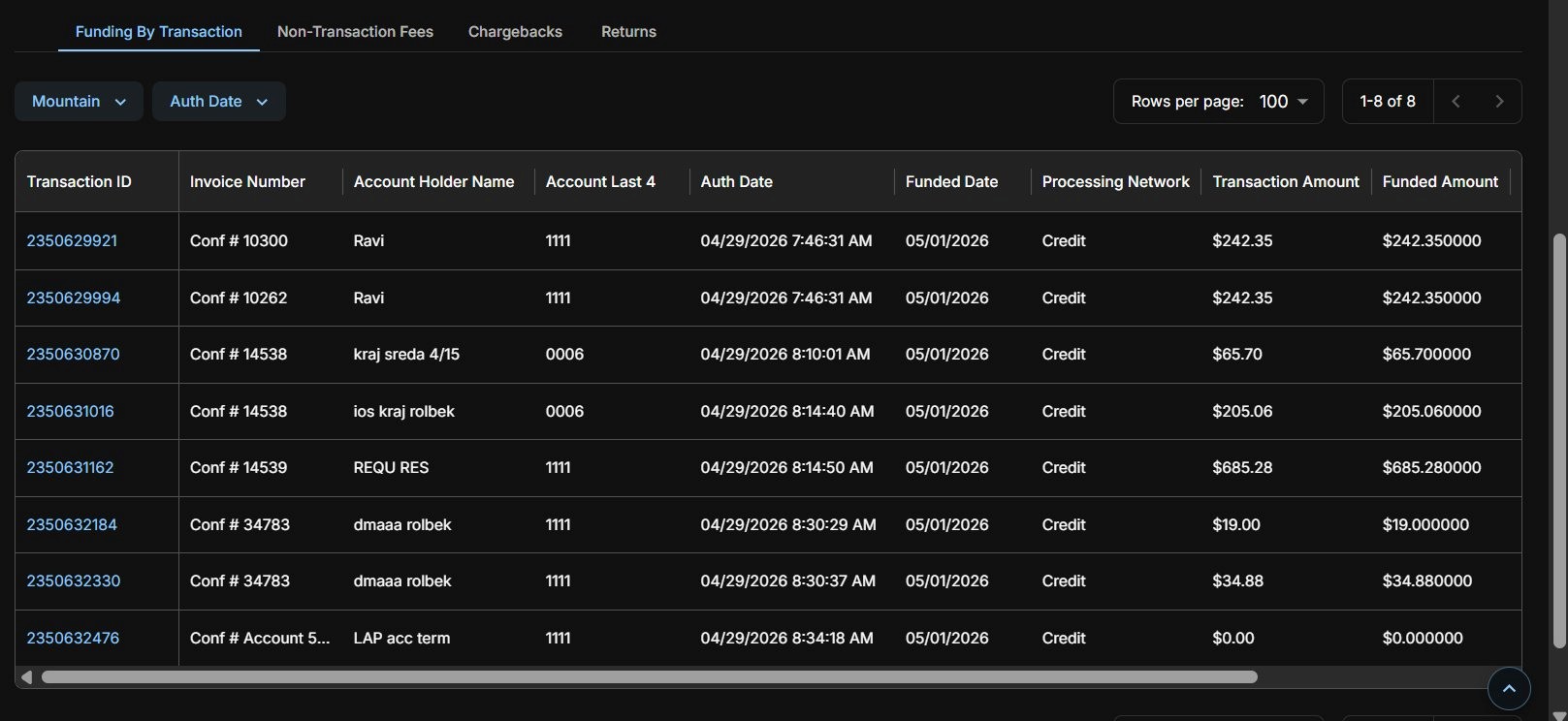
- Funding By Transaction: Every individual transaction included in the batch.
- Non-Transaction Fees: Any network or monthly fees deducted from this batch.
- Chargebacks: Any chargeback amounts deducted from this batch.
- Returns: Any ACH returns associated with this batch.
Transactions Report
The Transactions Report is the second report to check regularly. It lists all transactions individually – including failed ones – giving you a complete picture of your payment activity.
Transactions Report
You can filter by Processing Network, Transaction Type (Successful, Failed, or both), Account Last 4, and more. Each Transaction ID is clickable and opens the full transaction details.
Transaction Summary
Transaction Summary shows your daily transaction count and volume, broken down by payment method. Useful for a quick daily overview.
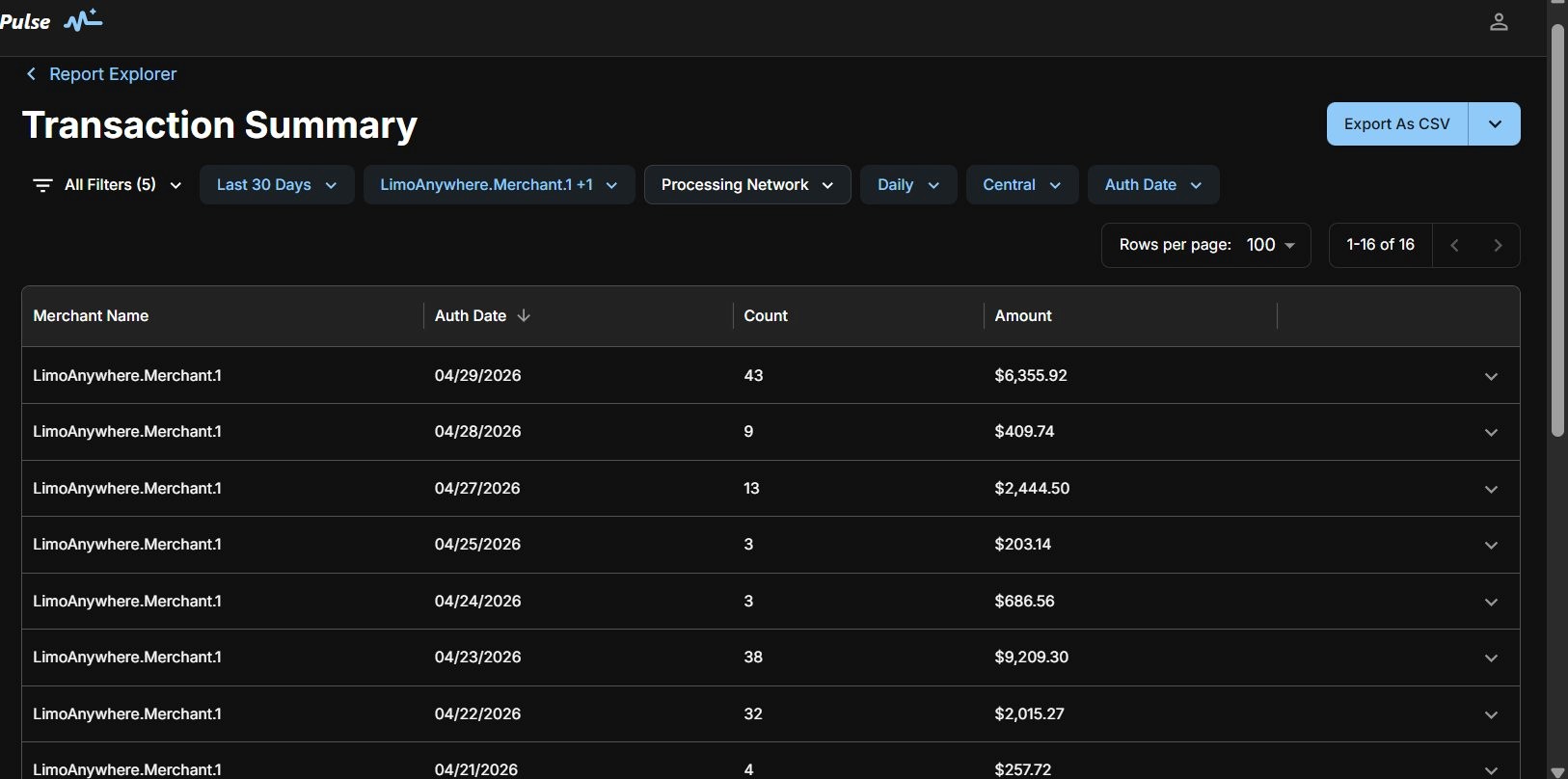
Transaction Summary
Transaction Summary counts all 24 hours of a calendar day. Because the LA Pay batch closes at 8:05 PM CST, transactions processed before and after that time on the same day may show differently between this report and your Funding Summary. For most accurate reconciliation, process all same-day transactions before 8:05 PM CST.
Chargeback Reports
Three chargeback reports are available:
- Chargeback Summary: A high-level count and total of chargebacks by date.
- Chargeback Report: Full list of individual chargebacks with Reason Code, Amount, Fee, Status, and links to Transaction Details.
- Chargeback Action Report: Lists every action taken on each chargeback. A single chargeback may appear more than once if multiple actions have occurred.
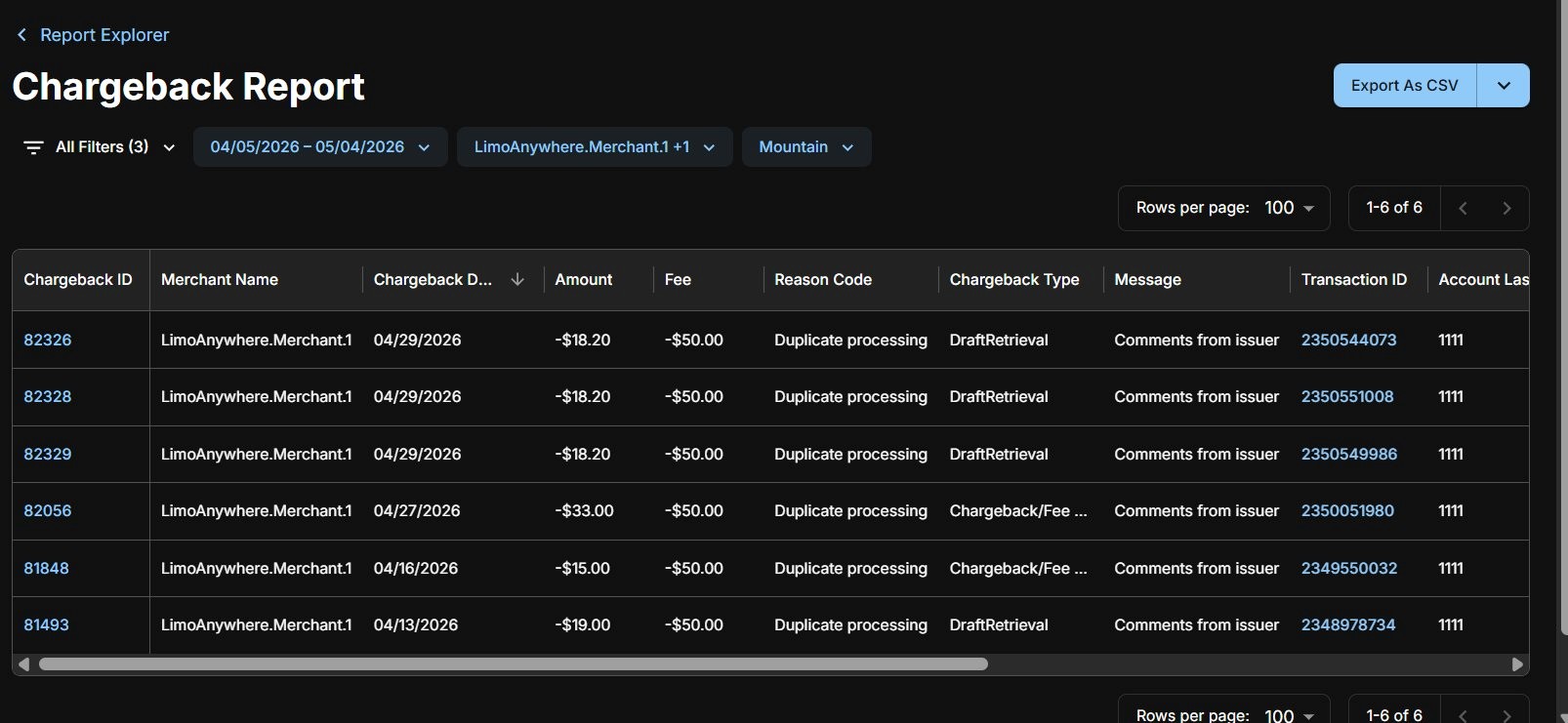
Chargeback Report
Clicking a Chargeback ID opens the full Chargeback Details page, showing the complete case history including all actions, amounts deducted, and associated funding information.
Merchant Statement
Your monthly statement summarizing all account activity including transactions, refunds, fees, and chargebacks. Access it from Report Explorer or directly from the Dashboard.
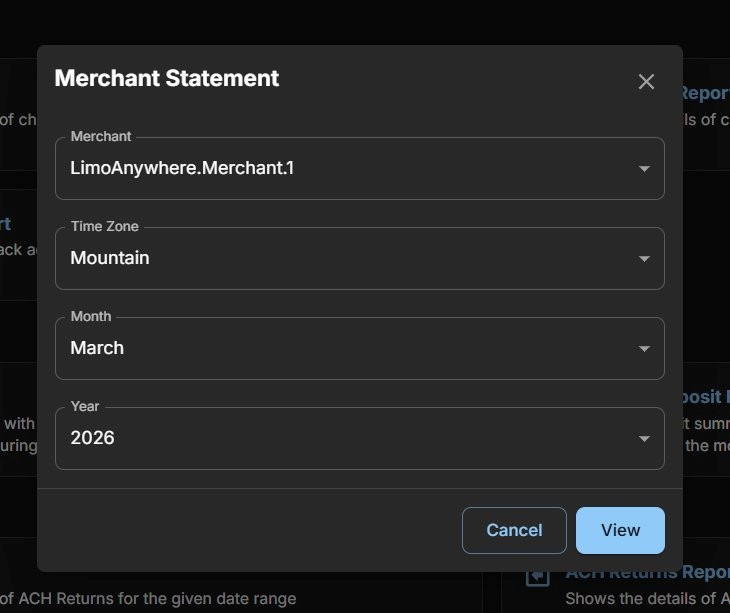
Merchant Statement – select your parameters and click View to download
Pop-up blockers must be disabled for the Merchant Statement to download.
Merchant Deposit Report
A full monthly breakdown of all your deposits, fees, chargebacks, and ACH returns. Select a month and year to generate the report.
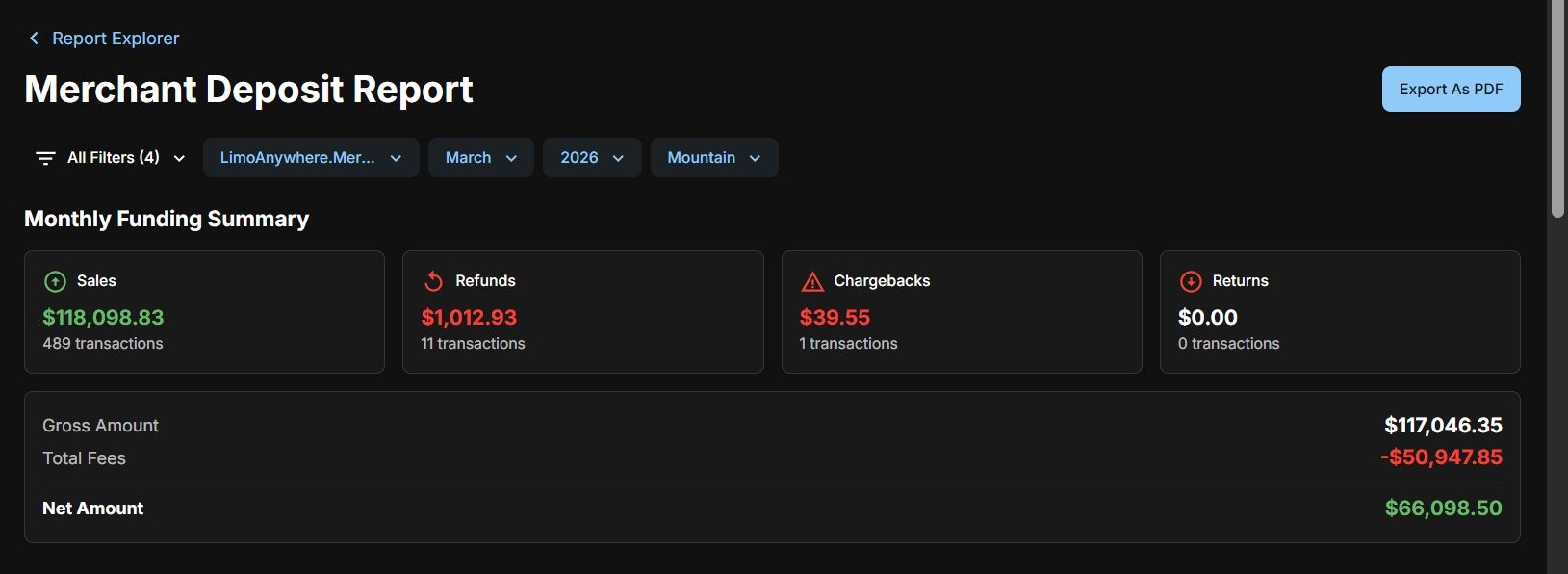
Merchant Deposit Report – Monthly Funding Summary
Four tabs are available within the report:
- Funding Details: All funding batches for the month with full amounts and fees.
- Non-Transaction Fees: Itemized breakdown of all network-level fees applied during the month.
- Chargeback Actions: All chargeback-related deductions for the month.
- ACH Returns: All ACH returns for the month, including return codes.
ACH Returns Reports
Two reports are available for ACH return activity:
- ACH Returns Summary: High-level count and total of returns by date.
- ACH Returns Report: Detailed list of individual returns including Return Code, Return Description, amount, fee, and a link to the original transaction.
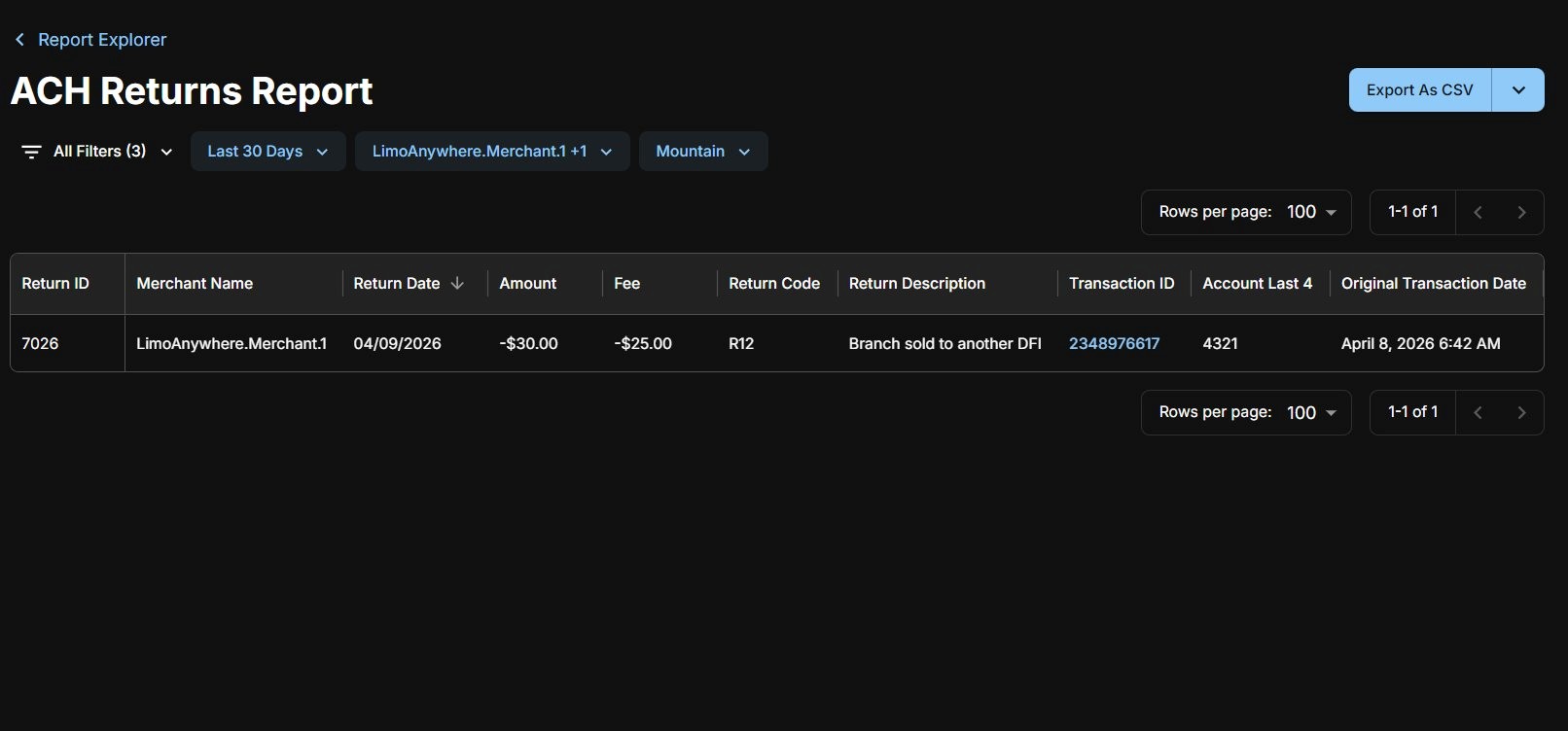
ACH Returns Report
Transaction Search
Transaction Search is the fastest way to look up a specific transaction. Use it when you need to void, refund, or pull up a receipt for a particular charge.
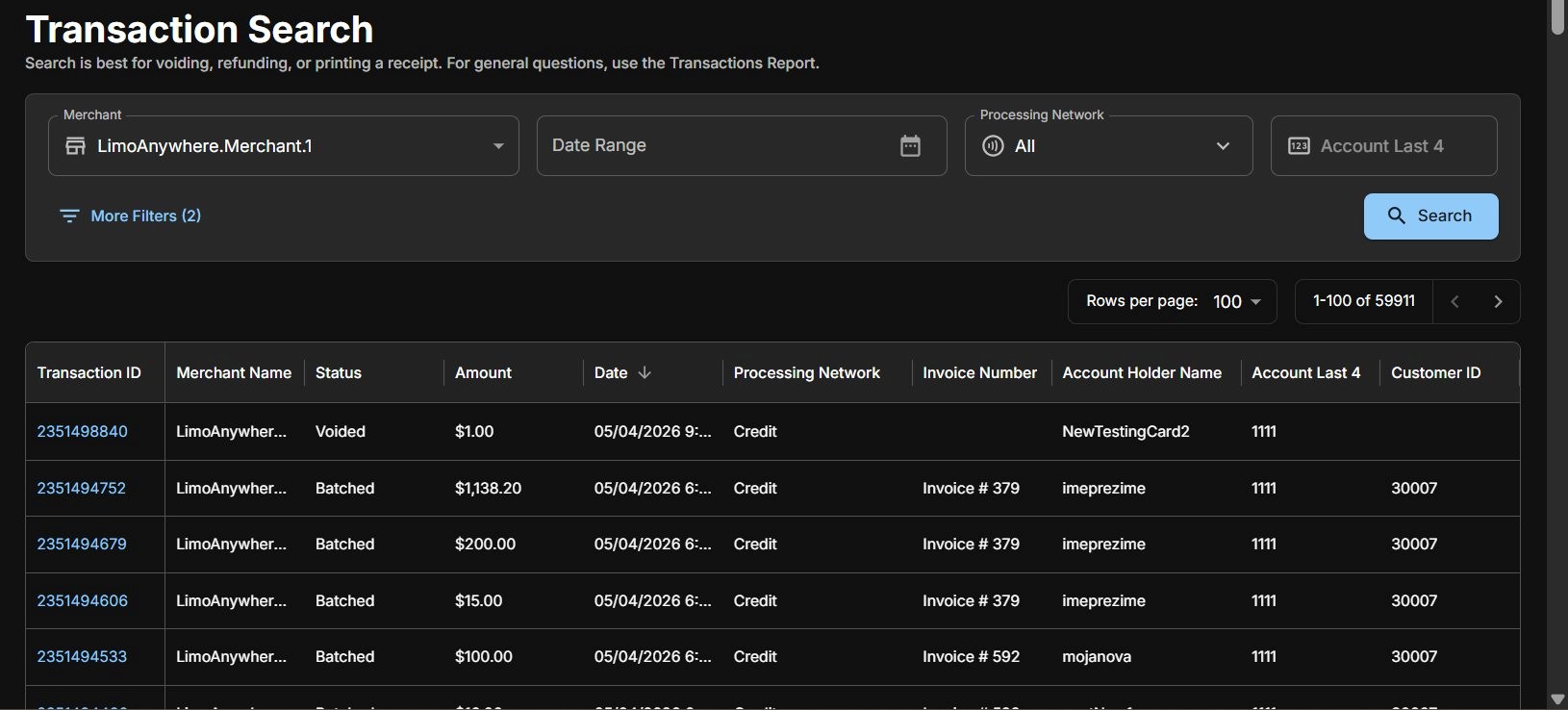
Transaction Search
Search by Merchant, Date Range, Processing Network, or Account Last 4. Click “More Filters” to access additional options including Account Holder Name, Invoice Number, Transaction ID, Customer ID, Payment Method, and Transaction Status.
Transaction Details
Clicking any Transaction ID – whether from Transaction Search, a report, or a funding batch – opens the full Transaction Details page.
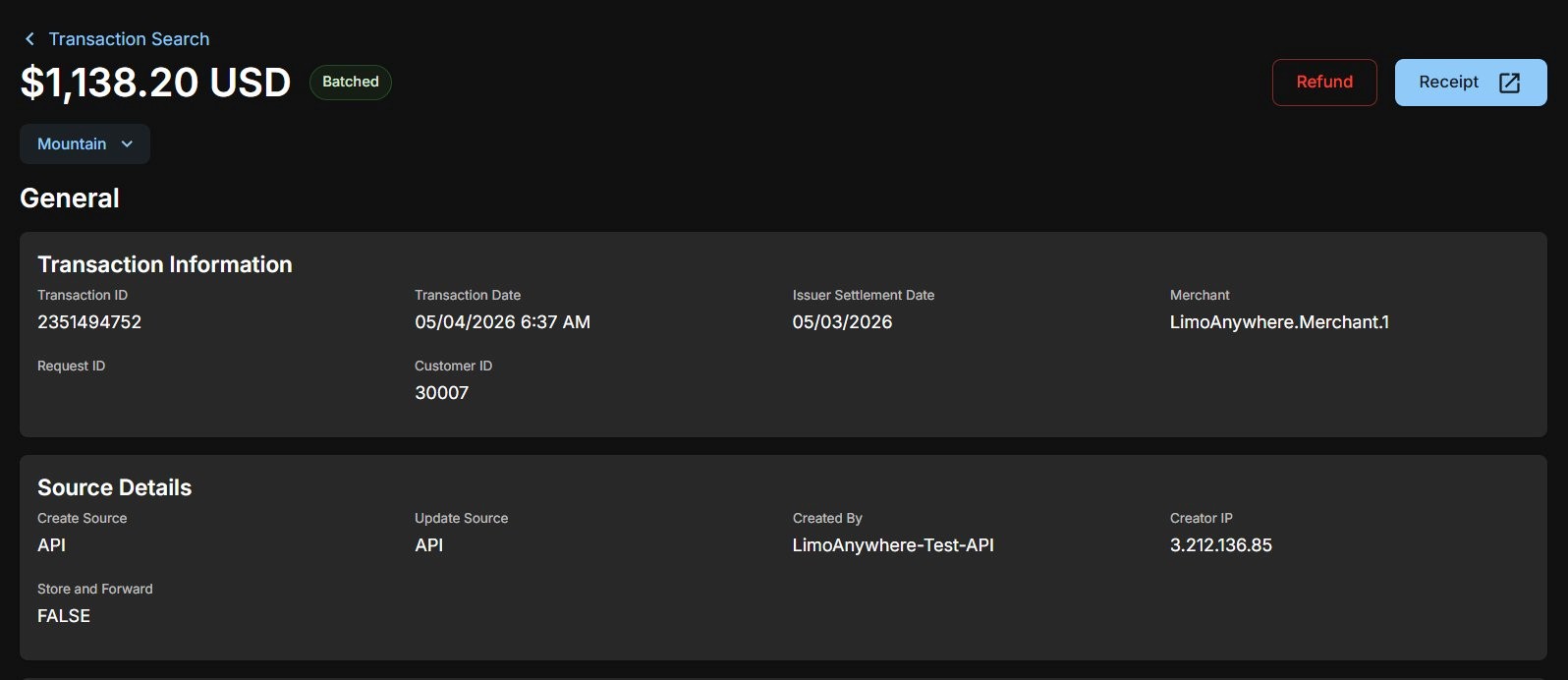
Transaction Details
Transaction Details displays everything associated with the charge in a single scrolling view:
- General: Transaction ID, date, merchant, customer ID, and source information.
- Processing Details: Card entry method, authorization code, AVS and CVV response.
- Payment Details: Payment method, network type, funded date, funded amount, and total fees.
- Transaction Line Items: Itemized breakdown of charges included in the transaction.
- Reconciliation: Invoice number, order date, and related data.
From this page you can also issue a Refund or pull up a Receipt using the buttons in the top right corner.
ACH Transaction Details
ACH transactions follow the same layout. Key differences you will see:
- Payment Method: Shows the account type (e.g. Personal Savings, Business Checking).
- Network Type: Displays as ACH.
- Account Details: Includes SEC Code and Routing Number instead of card-specific fields.
- Account Owner Information: Replaces the Shipping Information block with the bank account holder details.
Returned ACH Transactions
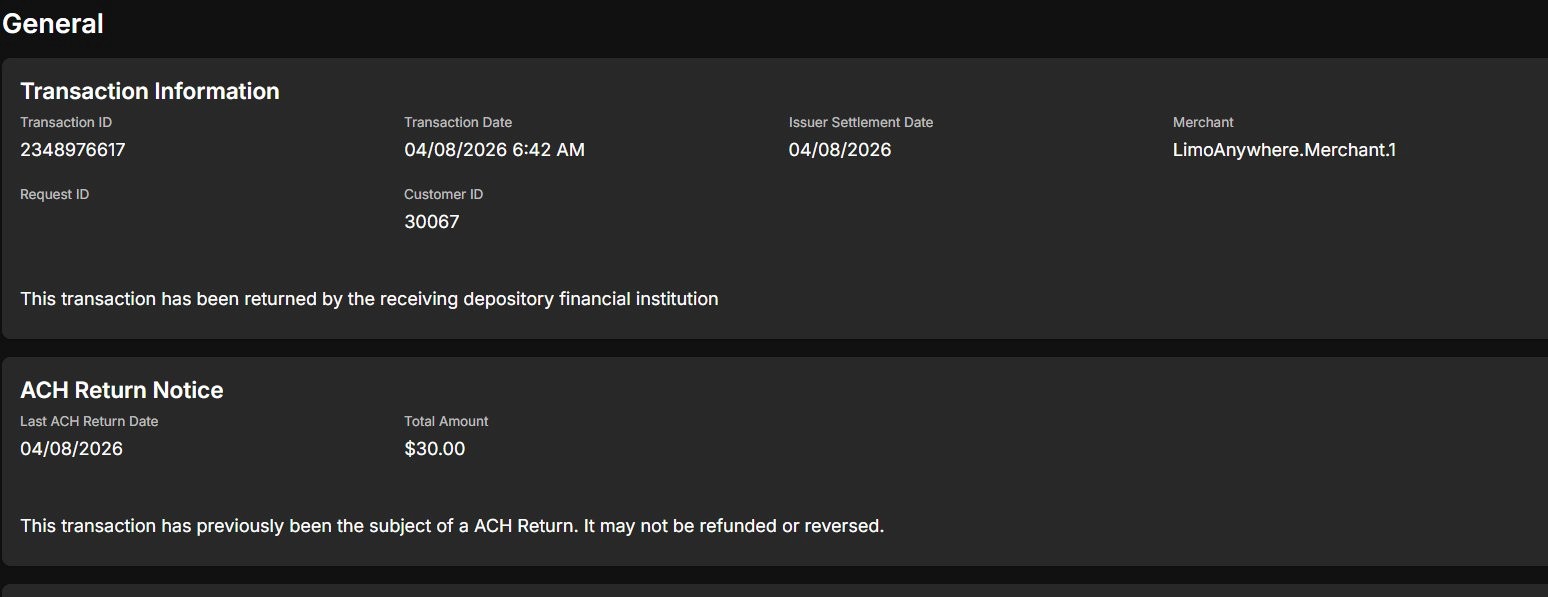
Returned ACH transaction – return notice visible in Transaction Details
If an ACH transaction has been returned by the bank, two notices will appear on the Transaction Details page:
- “This transaction has been returned by the receiving depository financial institution.”
- “This transaction has previously been the subject of an ACH Return. It may not be refunded or reversed.”
Returned ACH transactions cannot be refunded or reversed. If a return occurs, the original transaction is voided and the balance is restored to outstanding. You will need to collect payment from your customer through an alternative method.
Virtual Terminal
The Virtual Terminal allows you to manually process a card payment directly within Pulse. It is PCI DSS Compliant and supports card transactions only.
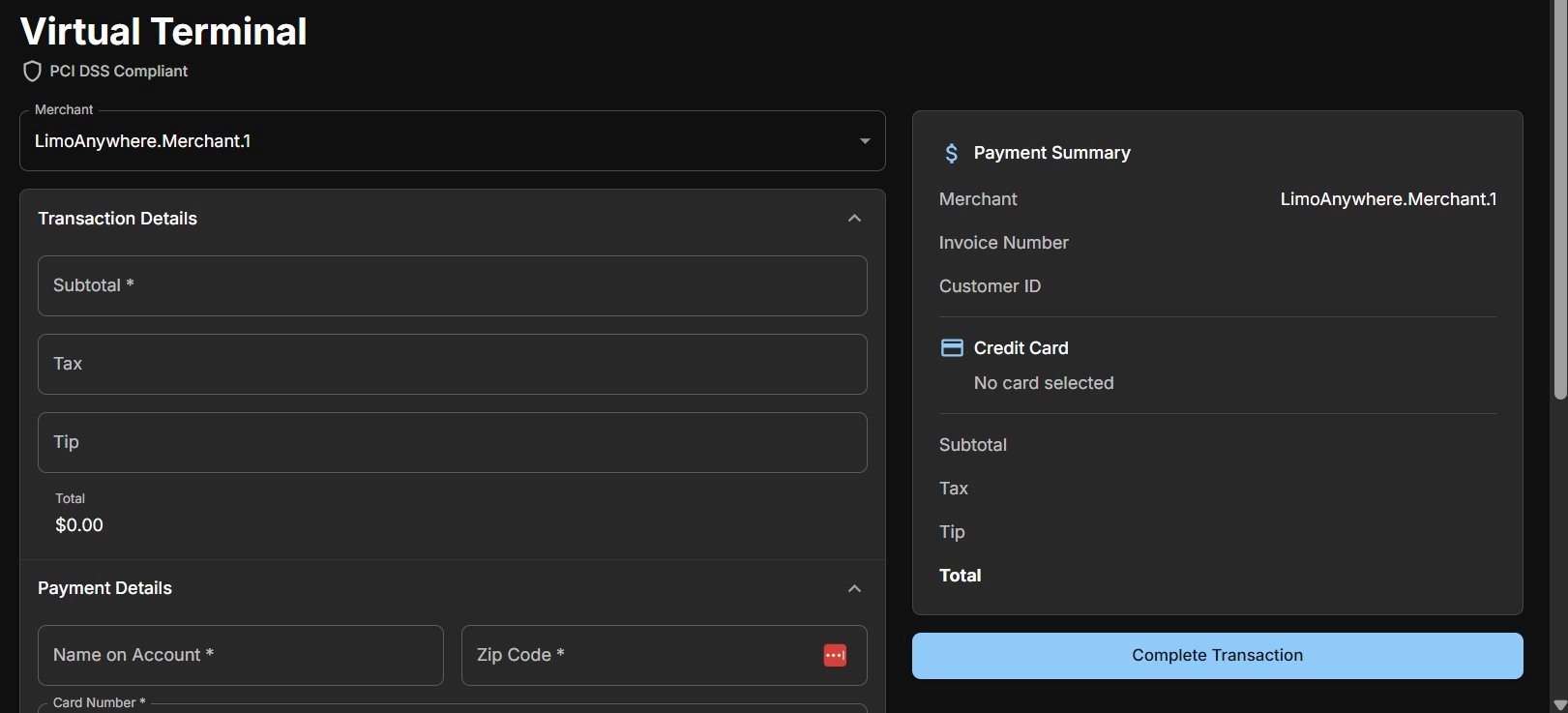
Virtual Terminal
To process a payment, complete the following:
Transaction Details
Enter the Subtotal. Tax and Tip fields are optional. The Total calculates automatically.
Payment Details
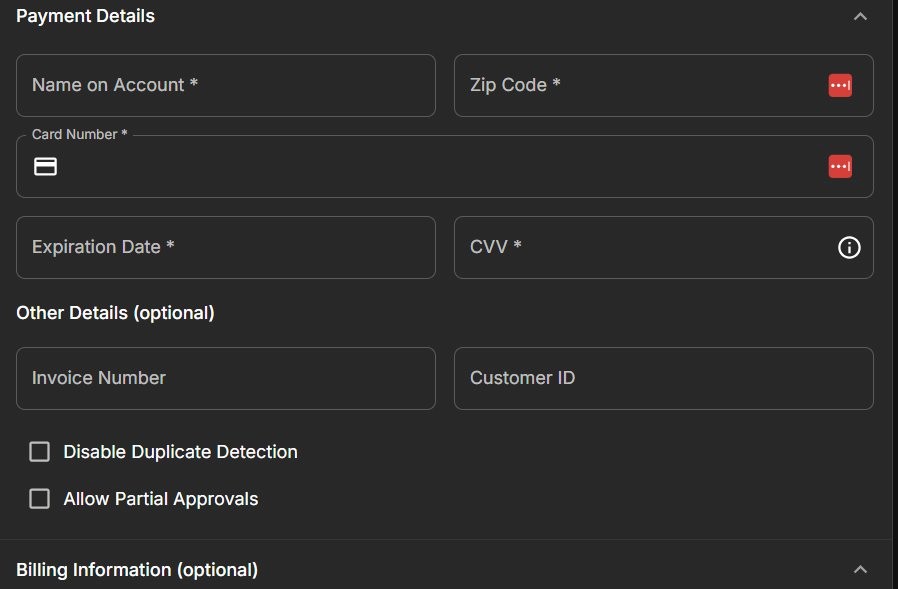
Payment Details section
Required fields: Name on Account, Zip Code, Card Number, Expiration Date, and CVV.
Optional fields: Invoice Number and Customer ID. You can also enable Disable Duplicate Detection or Allow Partial Approvals using the checkboxes provided.
Billing Information (Optional)
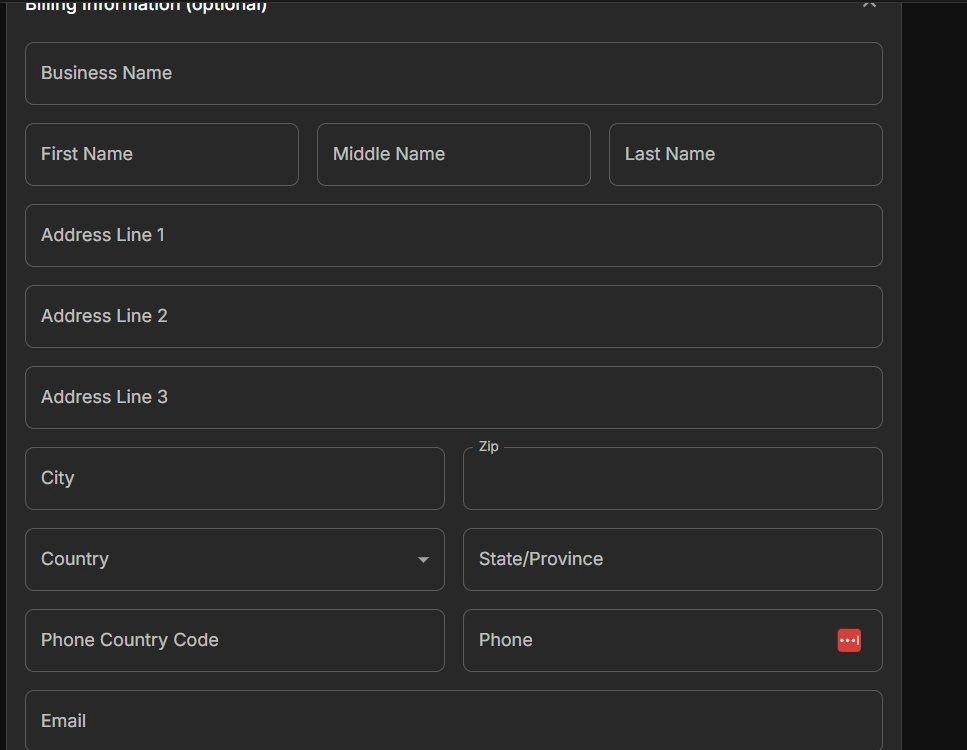
Billing Information – optional, expandable section
Billing Information is optional and can be expanded or collapsed as needed. Fields include name, address, phone, and email.
As you fill in the form, the Payment Summary panel on the right updates live. When everything looks correct, click Complete Transaction to process the payment.
Settings
Settings lets you personalize how Pulse loads and displays information for your account.
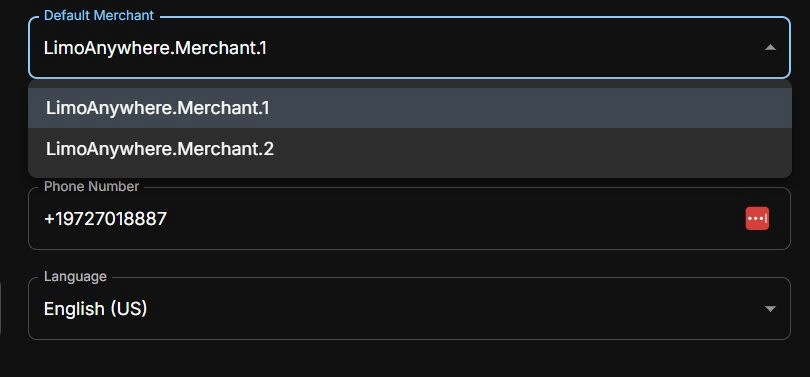
Settings – preferences
You can configure the following:
- Default Merchant: Set which account loads by default on the Dashboard and in reports. Useful if you have more than one MID.
- Language: Set your preferred display language.
- Timezone: Set your default timezone, which applies across the Dashboard and all reports.
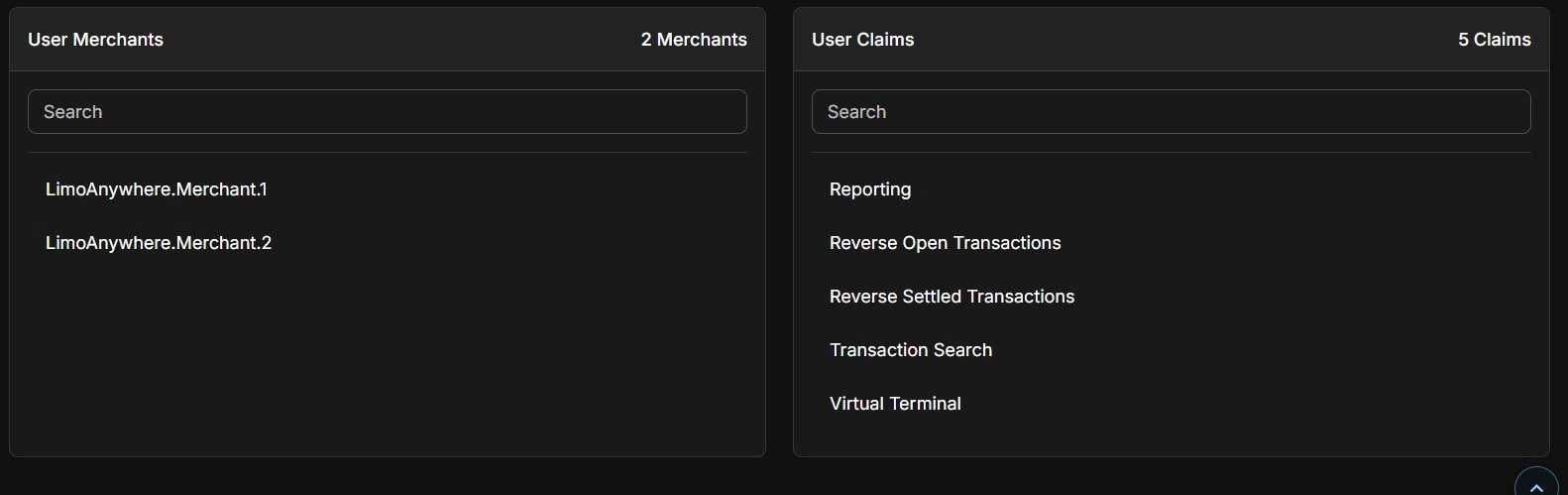
User Merchants and User Claims
The Settings page also displays your User Merchants – all accounts you have access to – and your User Claims, which show the features and permissions enabled for your account.
If you have any questions or need assistance, please contact our dedicated Support team at 972-701-8887, option 2.