

Crew Link is a mobile-friendly portal designed for airline crew transportation. It gives flight crews a simple way to look up their ride, see driver and vehicle details, notify the driver when they’re heading to the curb, and optionally call the driver or dispatch — all without needing a login or downloading an app.
You create a separate portal for each airline/airport combination, customize the branding, and share the link with the airline. Crew members open the link on their phone and find their ride in seconds.
Crew Link is an LA Black feature typically used in conjunction with out Airline Email Parser feature.
How to Access Crew Link Settings
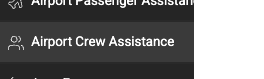
- Navigate to Airport Crew Assistance in the left sidebar
Creating a New Crew Portal
- On the Crew Link page, click Add New Crew Portal
- Fill in the portal settings (described below)
- Click Create Crew Link Portal
Names
- Airline Name — The name of the airline (e.g., “Delta Air Lines”)
- Airline Code — The airline’s code (e.g., “DL”). This is used to match flights when looking up reservations
- Airport Name — The airport this portal covers (e.g., “JFK International”)
Images
- Favicon Image — A small icon (max 144×144 px) used when the crew member adds the portal to their phone’s home screen
- Logo Image — Your company logo (max 200×200 px) displayed at the top of the portal
- Background Image — A full-screen background image (max 1080×1920 px) for the portal
Points of Interest
These are the hotels, crew bases, or other locations the airline crew might be traveling to or from. The crew member selects one of these locations when looking up their ride.
To add a location:
- Type the name in the search box under Add New
- Select the correct location from the results (these come from your Points of Interest)
- The location appears in the table. Click the red X to remove it
You should add all hotels and crew layover locations serviced by this airline at this airport.

Styles
Customize the portal’s appearance:
- Primary Color — The main button color
- Accent Color — The text and border color on buttons
- Background Color — A fallback color that shows when the background image doesn’t fully cover the crew member’s screen
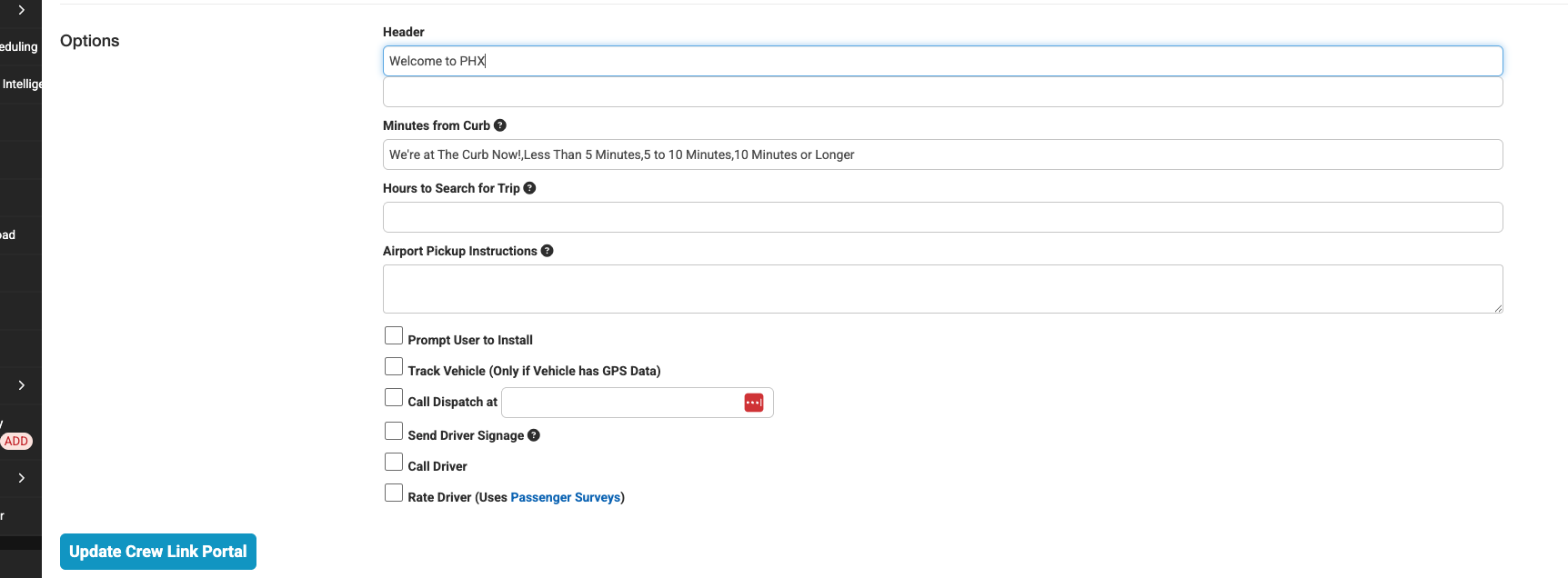
Options
- Header — Two lines of text displayed at the top of the portal (e.g., “Delta Crew Transportation” and “SLC Airport”)
- Minutes from Curb — The options the crew member sees when telling the driver how far they are from the pickup curb. These are sent to the driver via SMS. Default options: “We’re at The Curb Now!”, “Less Than 5 Minutes”, “5 to 10 Minutes”, “10 Minutes or Longer”. You can customize these by editing the comma-separated list
- Hours to Search for Trip — How many hours forward and backward the system searches for a matching reservation when the crew uses the “Airport to Hotel” flow. Only applies to that direction since the crew specifies the date when going from hotel to airport
- Airport Pickup Instructions — Custom instructions that appear in bold red text on the trip details screen when the crew is being picked up from the airport (e.g., “Meet driver at Pickup Zone 3”)
Toggles
- Prompt User to Install — Shows a prompt encouraging the crew member to add the portal to their phone’s home screen (uses the favicon image you uploaded)
- Track Vehicle — Shows the driver’s current location on a map if the vehicle has GPS data. The location must have been updated within the last 15 minutes
- Call Dispatch — Adds a “Call Dispatch” button with your dispatch phone number
- Send Driver Signage — Sends the driver a signage link along with the SMS notification
- Call Driver — Adds a “Call the Driver” button so the crew can call the driver directly
- Rate Driver — Adds a driver rating option using your Passenger Survey feature
Managing Existing Portals
The main Crew Link page shows a table of all your portals with:
| Column | What It Shows |
|---|---|
| Edit | Click the gear icon to edit the portal settings |
| Airport Name | The airport for this portal |
| Airline Name | The airline this portal is for |
| Locations Serviced | The Points of Interest (hotels) assigned to this portal |
| Call Driver | Whether the Call Driver option is enabled |
| Call Dispatch | Whether the Call Dispatch option is enabled |
| Track Vehicle | Whether the Track Vehicle option is enabled |
| Link | Click the copy icon to copy the portal URL to your clipboard |

Sharing the Portal Link
- On the Crew Link page, click the copy icon in the Link column for the portal you want to share
- The portal URL is copied to your clipboard
- Share this link with the airline — crew members open it on their phone’s browser
The link does not require a login. Anyone with the link can access the portal, so share it only with authorized airline contacts.
How Crew Members Use the Portal
When a crew member opens the portal link on their phone, they see two options:
Airport to Hotel (Arriving at Airport)
- The crew member taps “I’m at the airport and need a ride to the hotel”
- They enter their flight number
- They select their destination hotel from the dropdown
- They tap Find Ride
- The system searches for a matching reservation within the configured time range
- If found, the portal shows:
- Airline name and flight number
- Hotel name
- Driver’s first name
- Vehicle details (color, make, model, license plate)
- Current vehicle status
- Airport pickup instructions (if configured)
- A map showing the driver’s current location (if Track Vehicle is enabled and GPS data is available)
- The crew member then sees “How long until you reach the curb?” with the configured time options
- When they tap an option (e.g., “Less Than 5 Minutes”), an SMS is automatically sent to the driver with the message, such as: “The Crew for Delta Flight 1234 said: Less Than 5 Minutes”
- If enabled, the crew can also tap Call the Driver or Call Dispatch
Hotel to Airport (Departing from Hotel)
- The crew member taps “What time is my ride from the hotel to the airport?”
- They enter the date of their ride, their flight number, and select their hotel location
- They tap Find Ride
- The system looks up the matching reservation and displays the trip details
If No Trip Is Found
If the system cannot find a matching reservation, it shows a message like “We could not find Delta Flight 1234 within X hours.” If Call Dispatch is enabled, a button appears so the crew can call dispatch directly for help.
IVR (Phone-Based Lookup)
Crew Link also supports an automated phone system (IVR) that allows crew members to call in and look up their ride by entering their airline code, flight number, and destination using the phone keypad. This is useful for airlines that prefer a phone-based workflow. Contact your account manager for IVR setup details.
Tips and Best Practices
- Create one portal per airline per airport. If you service Delta and United at JFK, create two separate portals with different branding for each.
- Add all serviced hotels as Points of Interest. The crew member selects their destination from this list, so it needs to be complete. Make sure each hotel is added as a Point of Interest in your system first.
- Customize the “Minutes from Curb” options to match your operation. If crews typically take longer to get through the terminal, add options like “15 to 20 Minutes.”
- Use Airport Pickup Instructions for specific meeting points. This text appears prominently in red, so it’s a great place for directions like “Meet at Terminal 4 Ground Transportation, Door 3.”
- Encourage crew members to add the portal to their home screen. Enable the “Prompt User to Install” option and upload a clear favicon so it looks like a native app on their phone.
- Test the portal before sharing it. Open the link on your own phone, enter a test flight number that matches a reservation in the system, and verify the full flow works.
Troubleshooting
- “We could not find Flight [number]” — The system searches within the configured “Hours to Search for Trip” window. Make sure the reservation exists, has the correct airline code and flight number, and falls within the search window. Also verify the trip status is NEW or STL (settled).
- Portal link doesn’t work — Make sure the portal was saved successfully. Go to the Crew Link page and verify the portal appears in the table, then re-copy the link.
- Driver doesn’t receive SMS — Verify the driver has a phone number on file and that your SMS feature is active. The SMS is triggered when the crew member selects a “Minutes from Curb” option.
- Vehicle map doesn’t show — Track Vehicle must be enabled on the portal, the vehicle must have GPS data, and the GPS record must be less than 15 minutes old. If GPS is not syncing, check your GPS integration settings.
- Points of Interest search returns no results — The locations must be added to your Points of Interest first. Go to your POI settings and add the hotel or location before it can be linked to a Crew Portal.