

Enable Feature
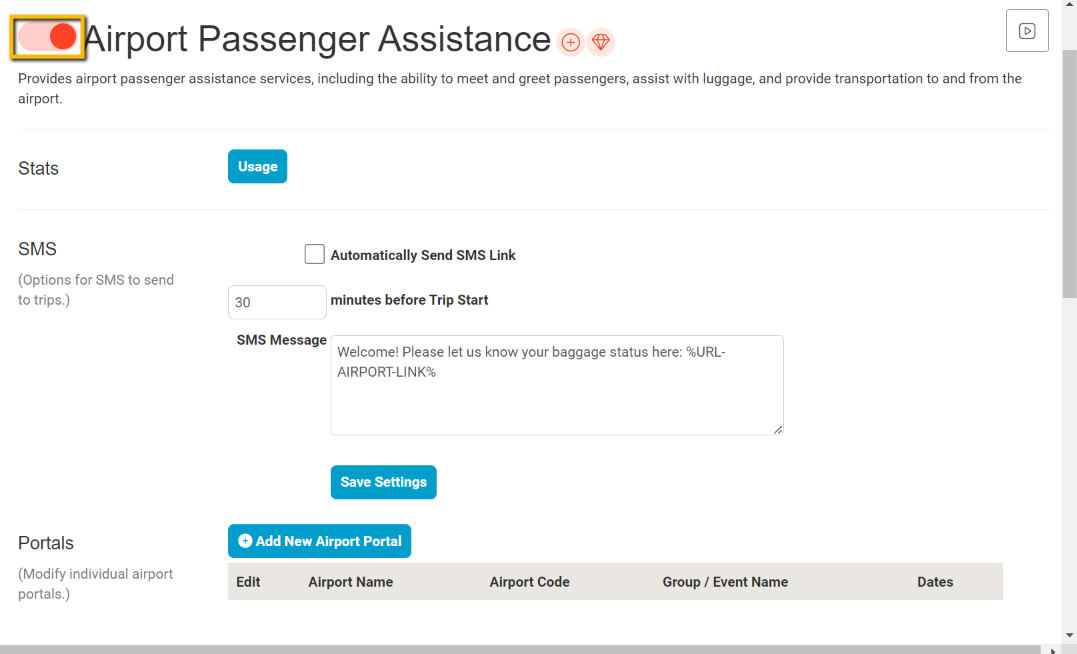
If you haven’t already, go ahead and enable this feature by using the toggle button as displayed in the image below.
This feature is only available to LimoAnywhere PLUS and BLACK customers.


SMS Setup
Choose a Trigger
You have two options for when the SMS is sent to the passenger:
- Time-based — Enter the number of minutes before the trip’s scheduled start time you want the message to go out.
- On Status Change — Send the SMS when the trip’s status changes to one of your selected statuses (e.g., “On The Way”, “Arrived”). This is useful when you want the message tied to your dispatch workflow rather than a fixed time.
Select your preferred trigger using the radio buttons, then configure the timing or status list accordingly.
SMS Message
Customize the outgoing SMS message using the text box and available variables. You can include any combination of:
- %URL-AIRPORT-LINK% or %URL-AIRPORT-LINK-SHORT% — A link to the interactive baggage portal where passengers communicate their luggage status
- %AIRPORT-TERMINAL-INSTRUCTIONS% — Terminal-specific and meet & greet-specific pickup instructions sent directly in the text (see Terminal Instructions below)
- Any other passenger, driver, vehicle, or trip variables listed in the Available Variables panel
You can use the portal link, terminal instructions, or both together. Click Save Settings when done.
Available SMS Variables
Click any variable in the Available Variables panel to copy it to your clipboard, then paste it into your SMS message. Here are the key variables:
| Category | Variable | Description |
|---|---|---|
| Passenger | %TRIP-PASSENGER-FIRST% | Passenger first name |
| Passenger | %TRIP-PASSENGER-LAST% | Passenger last name |
| Passenger | %TRIP-PASSENGER-PHONE% | Passenger phone number |
| Passenger | %NUM-PASSENGERS% | Number of passengers |
| Passenger | %NUM-LUGGAGE% | Number of luggage items |
| Driver | %DRIVER-FIRST% | Driver first name |
| Driver | %TRIP-DRIVER-LAST% | Driver last name |
| Driver | %TRIP-DRIVER-PHONE% | Driver phone number |
| Vehicle | %VEHICLE-COLOR% | Vehicle color |
| Vehicle | %VEHICLE-MAKE% | Vehicle make |
| Vehicle | %VEHICLE-MODEL% | Vehicle model |
| Vehicle | %TRIP-VEHICLE-PLATE-NUM% | License plate number |
| Vehicle | %TRIP-VEHICLE-CATEGORY% | Vehicle category |
| Trip | %LA-CONF-CODE% | Confirmation code |
| Trip | %SERVICE-TYPE% | Service type name |
| Trip | %TRIP-PICKUP-TIME% | Scheduled pickup time |
| Trip | %TRIP-PICKUP-DATE% | Scheduled pickup date |
| Trip | %TRIP-NOTES% | Trip notes |
| Location | %PICKUP-AIRPORT-CODE% | Airport IATA code (e.g., PHX) |
| Location | %PICKUP-AIRPORT-INSTRUCTIONS% | Airport instructions from LimoAnywhere |
| Location | %PICKUP-INSTRUCTIONS% | Custom pickup instructions from the trip |
| Location | %PICKUP-FLIGHT-NUMBER% | Flight number |
| Location | %PICKUP-AIRLINE-CODE% | Airline code |
| Location | %AIRPORT-TERMINAL-INSTRUCTIONS% | Auto-matched terminal & meet & greet instructions (NEW) |
| Location | %TRIP-PICKUP-ADDRESS% | Pickup address |
| Links | %URL-AIRPORT-LINK% | Full portal URL |
| Links | %URL-AIRPORT-LINK-SHORT% | Shortened portal URL |
Portals
Create New Portal
Names / Airport Code
Next, we want to Click the Add New Airport Portal button.
- Enter an Airport Name like Los Angeles International Airport and the Airport Code like LAX in this case.
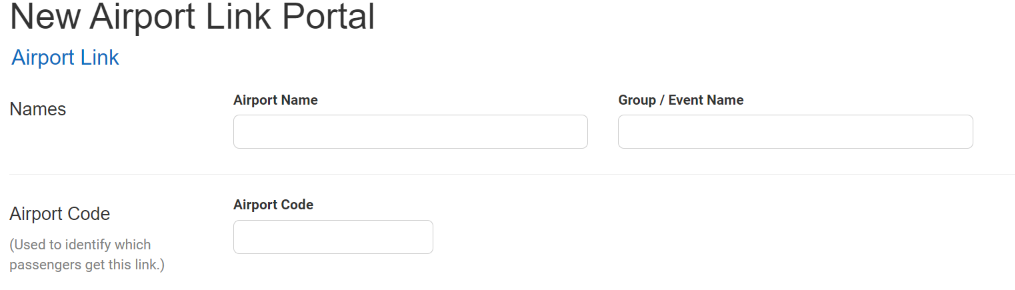

Unless you are planning on building an Airport portal specifically for a group you can ignore the Group/Event name and Start and End dates of the portal.
Logo Image
Next upload your logo to the Portal


Background Image
Then, if you would like you can upload a custom background image to enhance the appeal of your portal.


Trip Type Restrictions
Control which trip types use this portal. Check Farm In Trips to enable for trips received from other companies, and Farm Out Trips for trips you’re dispatching to affiliates.
Terminal Instructions (NEW)
Terminal Instructions let you configure different pickup instructions for each terminal at an airport, and differentiate between curbside pickup and meet & greet trips. The system automatically matches the correct instructions based on the trip’s flight terminal and meet & greet status from LimoAnywhere — no manual intervention needed per reservation.
Why Use Terminal Instructions
- Different terminals have different curbside pickup locations and door numbers
- Meet & greet trips need completely different instructions (e.g., “proceed to baggage claim” vs. “exit Door 3 North to the outer curb”)
- Instructions are sent directly in the SMS text — passengers don’t need to click a link or read through a long message to find the relevant part
- Works alongside the existing portal link — use one, the other, or both
Setting Up Terminal Instructions
- Go to Airport Passenger Assistance
- Click Edit on an existing portal (or create a new one)
- Scroll to the Terminal Instructions section
- Fill in the form and click Save Instruction to add each entry
For each instruction, configure:
- Terminal — The terminal number or letter (e.g., “3”, “4”, “A”, “International”). Leave blank for a catch-all default that applies when no specific terminal match is found.
- Meet & Greet — Check this box for trips where the driver meets the passenger inside the terminal (baggage claim, customs area, etc.). Leave unchecked for curbside pickup instructions.
- Instructions — The actual text that will be sent to the passenger.
Example Configuration for PHX (Phoenix Sky Harbor)
| Terminal | Meet & Greet | Instructions |
|---|---|---|
| 3 | No | Curbside pickup: Exit Door 5 North then cross to the outer curb. Look for the overhead sign “Prearranged North”. Your chauffeur will arrive 6-7 minutes after you notify them. |
| 3 | Yes | Once off the plane, proceed to the escalators that take you down to baggage claim. Your chauffeur will be waiting with a sign with your name on it. |
| 4 | No | Curbside pickup: Exit Door 3 North then cross to the outer curb. Look for the overhead sign “Prearranged 3 North”. Your chauffeur will arrive 6-7 minutes after you notify them. |
| 4 | Yes | For DOMESTIC flights, proceed to baggage claim — your chauffeur will be waiting with a sign. For INTERNATIONAL flights going through customs in Phoenix, your chauffeur will be outside customs with a sign. |
| (blank) | No | Please follow airport signage to the designated pickup area and notify your chauffeur when ready. |
How Auto-Matching Works
When the SMS is triggered, the system reads the trip’s terminal number and meet & greet flag from LimoAnywhere and finds the best matching instruction using this priority:
- Exact match — Same terminal + same meet & greet status
- Terminal match — Same terminal, any meet & greet status
- Meet & greet match — No specific terminal set, same meet & greet status
- Default fallback — No specific terminal set, curbside (not meet & greet)
- Empty — If no instructions are configured, the variable resolves to blank
This means you don’t need an entry for every possible combination — just set up the specific ones you need and a catch-all default. The system will always find the best match available.
Using Terminal Instructions in Your SMS
Add the %AIRPORT-TERMINAL-INSTRUCTIONS% variable to your SMS message template on the main Airport Link settings page. Example:
Welcome %TRIP-PASSENGER-FIRST%! Your driver %DRIVER-FIRST% is on the way in a %VEHICLE-COLOR% %VEHICLE-MAKE% %VEHICLE-MODEL% (plate: %TRIP-VEHICLE-PLATE-NUM%).

%AIRPORT-TERMINAL-INSTRUCTIONS%

Click the link to let us know about your baggage: %URL-AIRPORT-LINK-SHORT%
Styles
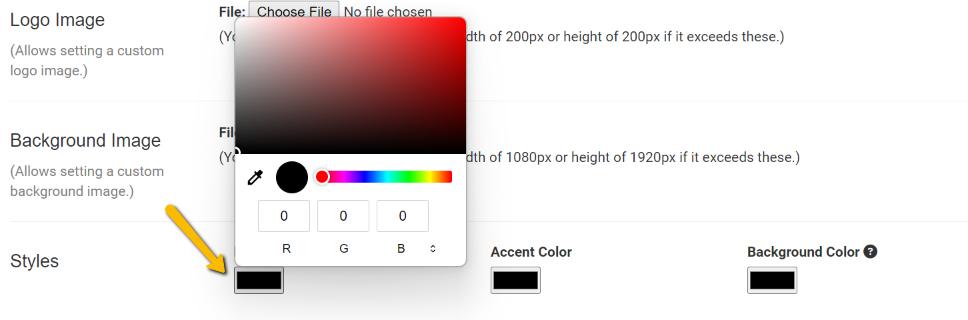
You can choose colors to help match your brand by clicking on the color squares.

Options
Header
You can add up to 3 Headers to the top of your portal page. This is the first thing your customer will see when they open the link.


Baggage Options
These currently are the default options your passenger will have to choose from when they first click the link in the text message. You can customize them to fit your needs, but make sure to put a + if you would like them to be taken to the Baggage Round 2 Prompt and negative to send them directly to the pickup instructions.


Baggage Round Two
The next step you can also customize if you would like, but this time, the + will take them to the pickup instructions and the negative option will allow them to call the driver if there is a delay in picking up their luggage.


Passenger Has Bags Message
This is the message that will display to the passenger once they have collected their luggage and clicked on the “I have all my bags, I’m ready to be picked up.” button from the weblink. You can customize it to fit your business, but just make sure at a minimum that you keep the %PICKUP-AIRPORT-INSTRUCTIONS% tag or your passenger will not be given directions to meet their driver.

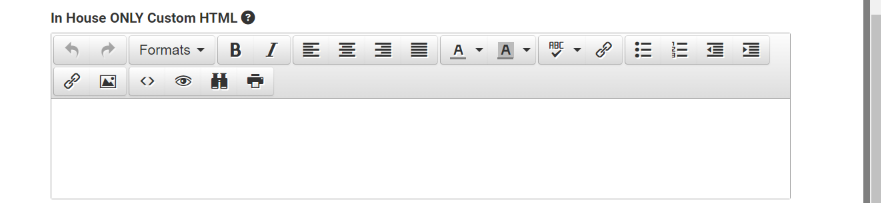
In House ONLY Custom HTML
If you would like to give special instructions or even a welcome video you can include that here. This will only go out for In-House non Farm-Out trips.

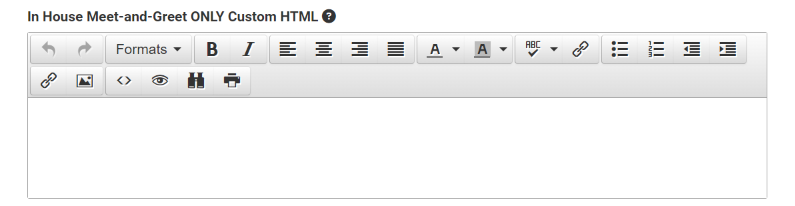
In House Meet-and-Greet ONLY Custom HTML
The next box is similar to the last one, but will only go out if it is an In-House Meet & Greet trip.

Passenger Ready for Pickup Instructions
This message will display to the customer if they mark the first 2 options on the first question. E.G. I only have carry on bags right after they click this link. You can customize it, but please make sure to keep the %PICKUP-AIRPORT-INSTRUCTIONS% part or else your customer won’t get any directions to the pickup location.


Driver SMS – Passenger Ready for Pickup
The driver will receive text messages throughout this process letting them know what the customer chooses. So if they have checked luggage, the driver will be notified of that. Once the passenger either says they have their luggage, or when they indicate they are 5 minutes away from the pickup area using the instruction time above, the driver will be notified and also given the same pickup instructions, just so there is no miscommunication.


Limo Anywhere Setup
Airports
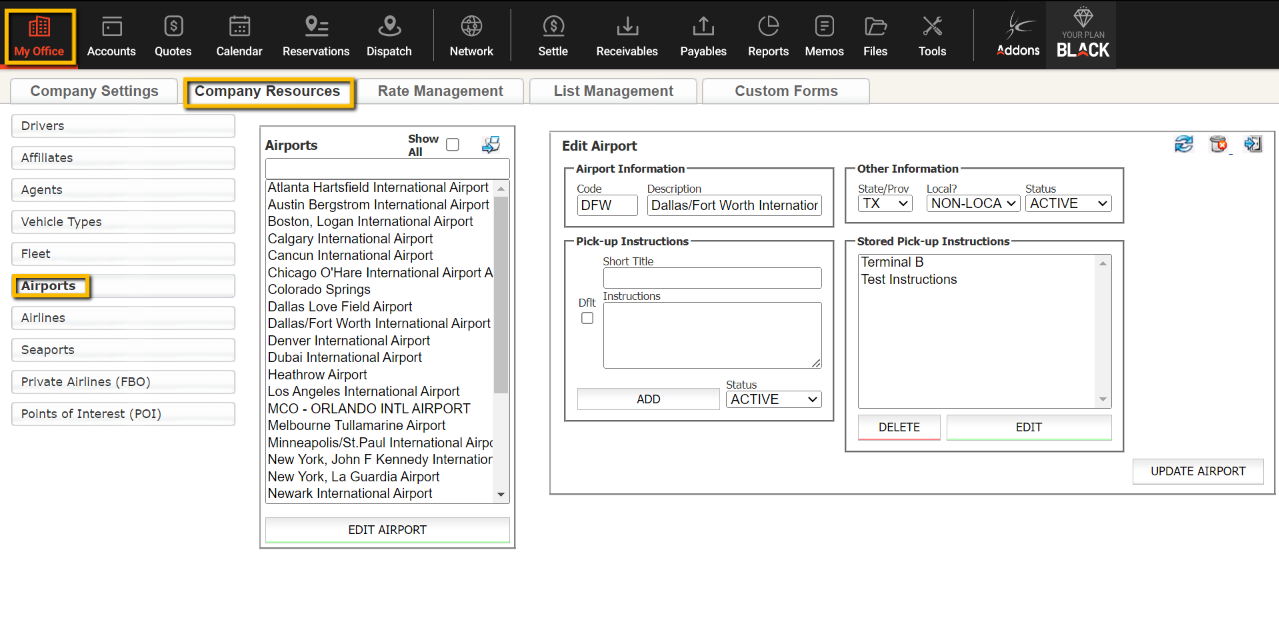
To use this feature and to send the passenger the correct instructions, you need to go to Limo Anywhere and navigate to My Office > Company Resources > Airports then select the airport you plan on sending your message out for and click EDIT AIRPORT. Under the airport information there is a Pick-up Instructions section. If you haven’t already done so, you need to enter your airport pickup instructions. You can save multiple instructions based on Meet and Greet and Terminal.
Note: If you click Dflt (Default) those instructions will be automatically added to all airport pickups.

Tip: If you set up Terminal Instructions in your Airport Portal (see above), you can manage your instructions directly in AddOns instead of relying on the LimoAnywhere airport instructions dropdown. The %AIRPORT-TERMINAL-INSTRUCTIONS% variable auto-matches based on the trip’s terminal and meet & greet status without any manual selection per reservation.
In Reservations
In a reservation that is an airport pickup, select the Airport Instructions dropdown, and select the appropriate instructions you would like the customer to receive. These instructions will take the place of the %PICKUP-AIRPORT-INSTRUCTIONS% placeholder you created during your Airport Portal Setup.
Note: If you use Terminal Instructions with the %AIRPORT-TERMINAL-INSTRUCTIONS% variable instead, the system automatically selects the correct instructions based on the trip’s terminal and meet & greet flag — you do not need to manually choose from the Airport Instructions dropdown for each reservation.
That’s it, now you’re ready to keep your customers informed throughout their journey!
Note: If you also have Passenger Link enabled, this will go out instead of the Passenger Link for trips marked From Airport.