

The Affiliate Trip Count Report gives you a side-by-side comparison of your farm-in and farm-out trip volume and revenue with each affiliate partner. Use it to evaluate which affiliates are sending you the most work, which ones you’re sending work to, and how the revenue breaks down across your network.
Availability
This report is available on LA Black accounts. If you do not see it in your navigation, contact your account manager about upgrading.
How to Access the Report
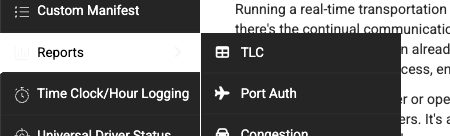
- Navigate to Reports > Affiliate Trip Count in the left sidebar

Generating the Report
- Select a Start Date and End Date for the period you want to review
- By default, the report shows the last 30 days
- Click Filter

Understanding the Summary Cards
At the top of the report, six summary cards give you a quick snapshot of your affiliate activity for the selected date range:
- Farm-In Trips — Total number of trips sent to you by affiliates
- Farm-Out Trips — Total number of trips you sent out to affiliates
- Total Trips — Combined farm-in and farm-out trip count
- Farm-In Revenue — Total revenue from trips affiliates sent to you
- Farm-Out Revenue — Total revenue from trips you farmed out
- Active Affiliates — Number of affiliate partners with at least one trip in the date range

Understanding the Main Table
The table below the summary cards lists every affiliate with trip activity during the selected period. Each row represents one affiliate partner and includes:
| Column | What It Means |
|---|---|
| Affiliate Name | The name of the affiliate company (click to see individual trip details) |
| Farm-In Trips | Number of trips this affiliate sent to you |
| Farm-Out Trips | Number of trips you sent to this affiliate |
| Trip % | The percentage split between farm-in and farm-out trips (e.g., “75% / 25%” means 75% of trips with this affiliate were farm-ins) |
| Farm-In Revenue | Revenue earned from trips this affiliate sent to you |
| Farm-Out Revenue | Revenue from trips you farmed out to this affiliate |
| Revenue % | The percentage split between farm-in and farm-out revenue |
| Total Trips | Combined trip count for this affiliate |
| Total Revenue | Combined revenue for this affiliate |
The table is sorted by total trips (highest first) by default. A Totals row at the bottom shows the grand totals across all affiliates.
Color Coding
- Green columns (Farm-In Trips, Farm-In Revenue) — Work coming in to you from affiliates
- Red columns (Farm-Out Trips, Farm-Out Revenue) — Work you are sending out to affiliates
Viewing Individual Trip Details
Click any affiliate name in the table to open a detailed breakdown of all trips with that affiliate. The detail popup shows:
- A summary of farm-in and farm-out counts and revenue for that specific affiliate
- A list of every individual trip, including:
- Type — Whether the trip was a farm-in or farm-out (color-coded label)
- Confirmation — The reservation confirmation number (click to open the trip in a new tab)
- Pickup Date — When the trip was scheduled
- Pickup Location — The pickup address
- Dropoff Location — The dropoff address
- Revenue — The trip total

Click the X button or click outside the popup to close it.
Exporting the Report
Use the buttons in the top-right corner of the main table to export the data as:
- CSV
- Excel
Tips and Best Practices
- Review monthly to evaluate affiliate relationships. If you’re sending significantly more work to an affiliate than they’re sending to you, it may be time to renegotiate terms or find additional partners.
- Use the Trip % and Revenue % columns to spot imbalances. A healthy affiliate relationship typically involves a reasonable balance of farm-in and farm-out activity.
- Click into individual affiliates to audit specific trips. This is useful for reconciling invoices or verifying that trip counts match what the affiliate is reporting.
- Compare different time periods. Run the report for different date ranges to see trends — is an affiliate sending you more or less work over time?
- Only trips with revenue are included. Trips with a $0 total are excluded from this report, so cancelled or unpriced trips will not appear.
Troubleshooting
- Report shows no data — Make sure you have affiliates set up in the system with matching account records. Both the affiliate profile and the billing account must exist and share the same company name for farm-in trips to appear.
- Farm-out trips are missing — Verify that the affiliate’s Limo Anywhere ID is populated on the affiliate profile. Farm-out trips are matched using this ID.
- An affiliate appears with only farm-in or only farm-out data — This is normal. Some affiliates may only send you work (farm-in only) or only receive work from you (farm-out only).
- Revenue amounts seem off — The report uses the trip cost total. If pricing hasn’t been finalized on some trips, those amounts may not be accurate yet.